
TIDY Concierge
The Concierge combines our AI agent with 24/7 humans to help.
AI can make mistakes. Please verify important information.
Groups
Groups are a great way to group together your properties and your users for various reasons. This includes:
- Giving people limited access to view or manage only a few addresses on your account, instead of seeing everything.
- Controlling how jobs inside a group are billed. For example, you can specify that one group of properties uses 1 credit card, while another group of properties can use a different credit card.
- Generating reports by group.
- Using groups to match accounting groups for exports.
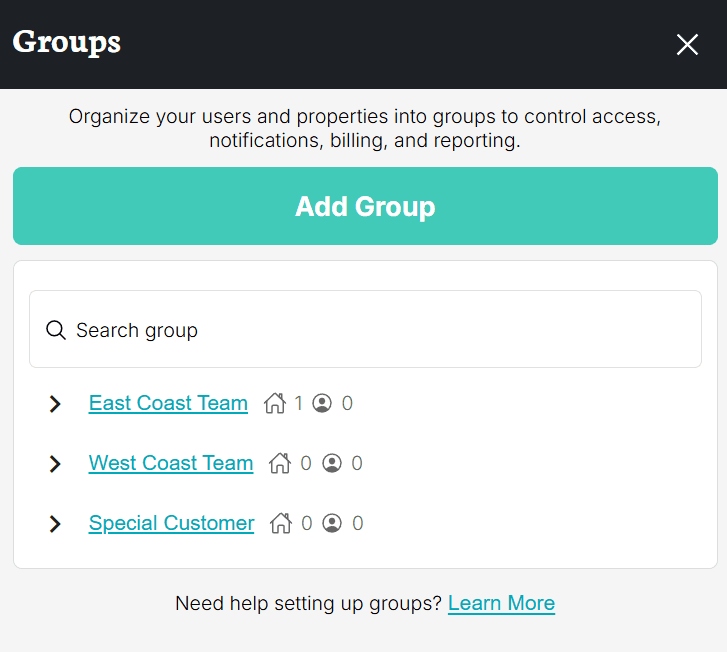
The Groups page displays your groups in a hierarchical tree structure, showing parent-child relationships between groups. This makes it easy to visualize how your organization is structured.
Adding Groups
- To create a group go to More then Groups.
- Select the option Add Group. Groups can be nested inside each other for complex reporting arrangements.
- Name your group, and you can add a "Parent Group" if this group sits underneath a parent group.
- Once your group is set up, you can add group members.
- Once your group is set up, you can add properties to the group. This enables group members to view and manage those properties.
Group Detail Page
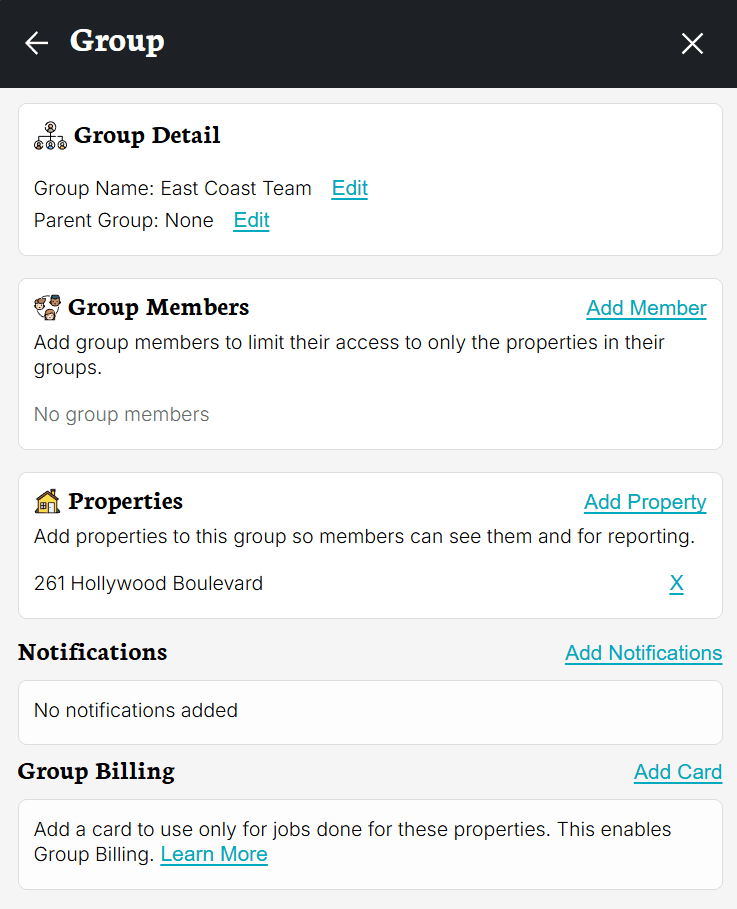
When you click on a group, you can see and manage everything about it:
- Group Name — Edit the group name at any time
- Parent Group — Change which group this one sits under (or make it a top-level group)
- Group Members — See all members, add new members, or remove existing ones. If you remove a member from their last group, they will be automatically converted to an Admin.
- Properties — See which properties are assigned to this group, add new ones, or remove existing ones
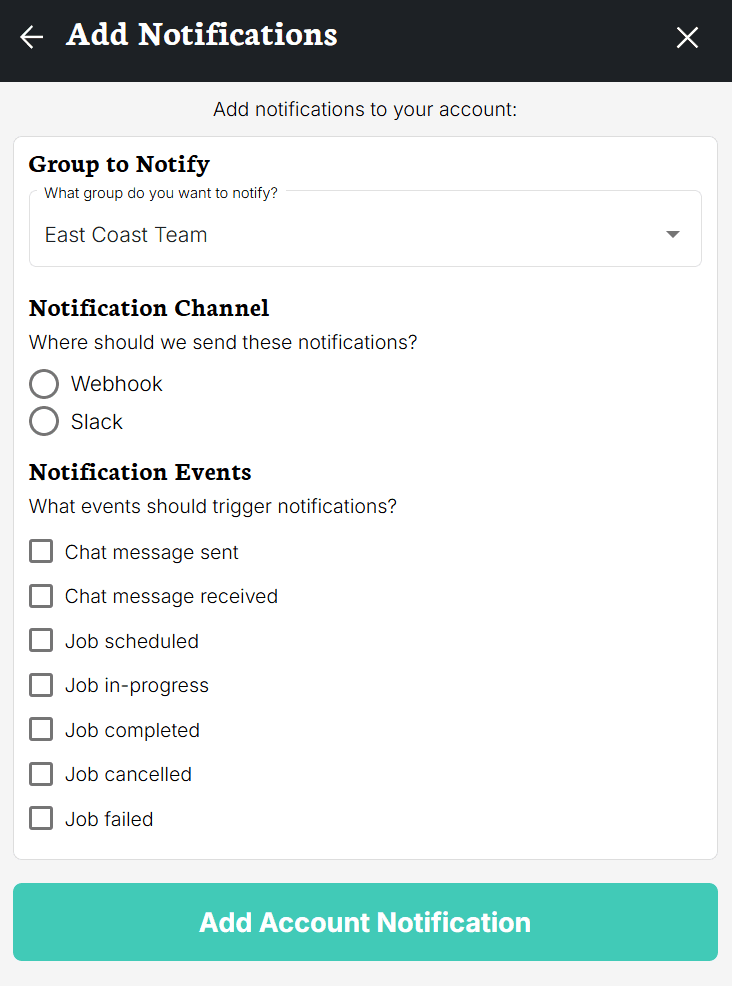
- Notifications — Configure notification events specific to this group (see Group Notifications below)
- Group Billing — Manage the payment method for this group (see Group Billing below)
Deleting a Group
To delete a group, open the group detail page and look for the delete option. TIDY will check for pending invoices on the group’s properties before allowing deletion. If there are pending invoices, you must resolve them first.
Group Notifications
Group notifications allow you to get specific notifications only for a group of properties on your account. So for example, if you want job reminders or completed notifications to go to someone for a specific property you can add their information for group notifications.
Note: You can also use workflows for a lot of these kinds of things, which may be more powerful.
Group Billing (Different Cards Per Property)
With group billing, you can assign different payment methods for each property, or group of properties in your account. This is helpful if you need to pay using 1 credit card for 1 property, and another credit card for another property.
If you add a card to "Group Billing", this will mean that you only use the credit card for that group for all jobs associated with that group.
Note: Subscription payments are all on the primary card, group billing only applies to job payments.
Using Groups
The way to use groups is simple: add the right users and properties to a given group. That is it. Those users will automatically have their permissions limited to those properties.
There are other features we can enable for you that relate to groups:
- Reporting by group
- Accounting exports by group
- Billing rules by group
Contact your account manager to learn more about these options.