TIDY Concierge
The Concierge combines our AI agent with 24/7 humans to help.
AI can make mistakes. Please verify important information.
Notifications
TIDY has several types of notifications that you can use to get alerts or trigger workflows:

- Account Notifications - These are notifications triggered when certain events occur for any properties in the account.
- Team Notifications - These are notifications triggered when certain events occur for properties associated with a team.
- User Notifications - These are notifications triggered when certain events occur for properties associated with a user.
graph TD; id1[Event Occurs] --> id2[Check Who Should Get Notified]; id2 --> id3[Check Where Notification Should Be Sent]; id3 --> id4[Send Notification];What Triggers Notifications
Account and team notifications can be triggered on the following events:
- Jobs created
- Jobs cancelled
- Job in progress
- Jobs completed
- Job failed
- Chat messages sent
User notifications can be triggered by those same events plus the following:
- Alerts that jobs may have an issue
- Invoices sent by a pro
Account owners may also receive:
- Notifications about account related activity
Notification Center
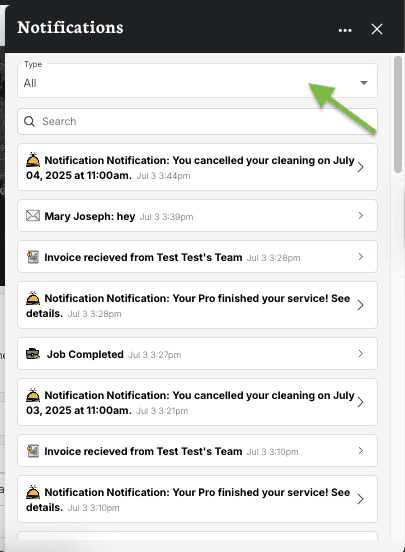
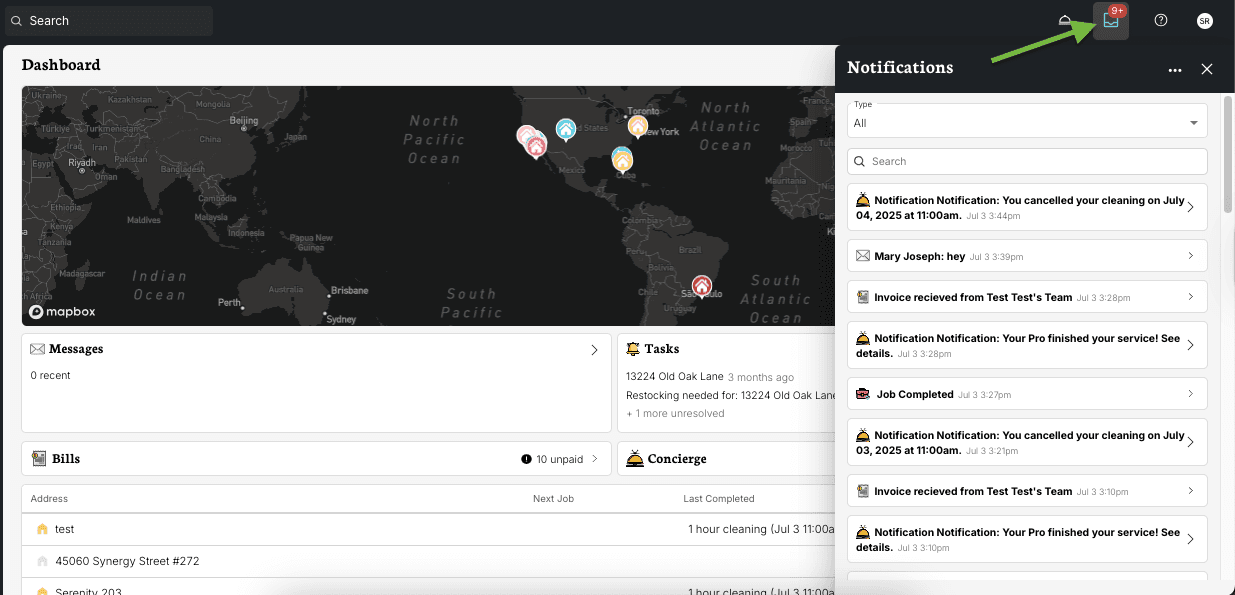
The Notification Center is your unified inbox for all system notifications. As soon as you log in, you can see all your notifications by tapping the bell icon at the top of the page. Select any notification to see more details and navigate directly to the relevant page.
Searching and Filtering
Use the search boxat the top of the Notification Center to filter notifications by text content. You can also filter by type — tap the "Type" dropdown and select from categories like Bookings, Addresses,Pros, Proposals, or Invoices to narrow down what you see.

Managing Notifications
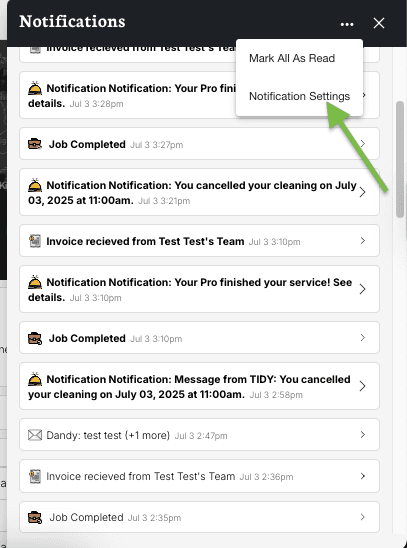
- Mark as read— Mark individual notifications as read, or use the "Mark all as read" option to clear them all at once.
- Click-through — Each notification links directly to the relevant page (e.g., a job notification takes you to the job details).
- Grouped messages — Related messages (like those from a job thread or concierge conversation) are grouped together so you can see the full context.
- Infinite scroll — Older notifications load automatically as you scroll down.
Common Notification Types
TIDY supports over 40 notification types, including:
- Job scheduled, completed, cancelled, or in progress
- Pro accepted, declined, or no-show
- Invoice created, paid, or overdue
- Reservation synced or updated
- Integration error or sync completed
- Message received
- Maintenance issue reported
Notification Settings
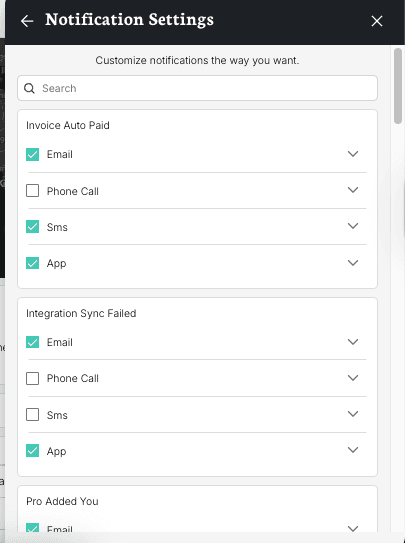
TIDY gives you control over how and when you get notified. To adjust your preferences, tap "Notification Settings" from the Notification Center or go to More > Notification Settings.

Delivery Channels
For each notification type, you can choose which channels to receive it on:
- Email — Receive notifications via email
- SMS — Receive notifications via text message
- In-app — Receive push notifications and in-app badges
Quiet Hours
You can set quiet hours to control when notifications are delivered. Configure a start and end time for each day of the week — during quiet hours, notifications will be held and delivered when the quiet period ends. Changes save automatically.