
TIDY Concierge
The Concierge combines our AI agent with 24/7 humans to help.
AI can make mistakes. Please verify important information.
Maintenance
Maintenance items are anything that you want your property management team to track. Typically, Jobs are used for "things done by pros on a property" and maintenance items are "things tracked by the property management team". Example maintenance items include:

- Maintenance requests
- Work orders
- Low stock replacement
- Turnovers (often with multiple associated jobs like inspections, cleanings, etc)
- Owner report generation
- and more
With TIDY, you can track maintenance items from clients, vendors, and more. You can think of these as a bit like "tickets", or "work orders" or "requests". Essentially, they are things that any user on your account or a pro can add. These are things you may want to create a job for or add to a different system to resolve. It is a useful way to stay on top of random things that do come up.
In TIDY, "Maintenance" items are typically something done by the property management team and your own employees. "Jobs" are typically done by outside parties.
Maintenance items are more flexible, and better to use when:
- The people doing the work are your employees or "like your employees".
- The people doing the work should have a lot of flexibility in when to add and update items.
- The people doing the work should have access to most or all of your account data to make decisions.
- You don’t need a lot of structured data on time spent, etc.
Jobs enable very clear workflows, so are better to use when:
- The person doing the job is an outside vendor.
- The person doing the job needs to follow a process you define.
- The person doing the job should have limited access to data.
Maintenance Board
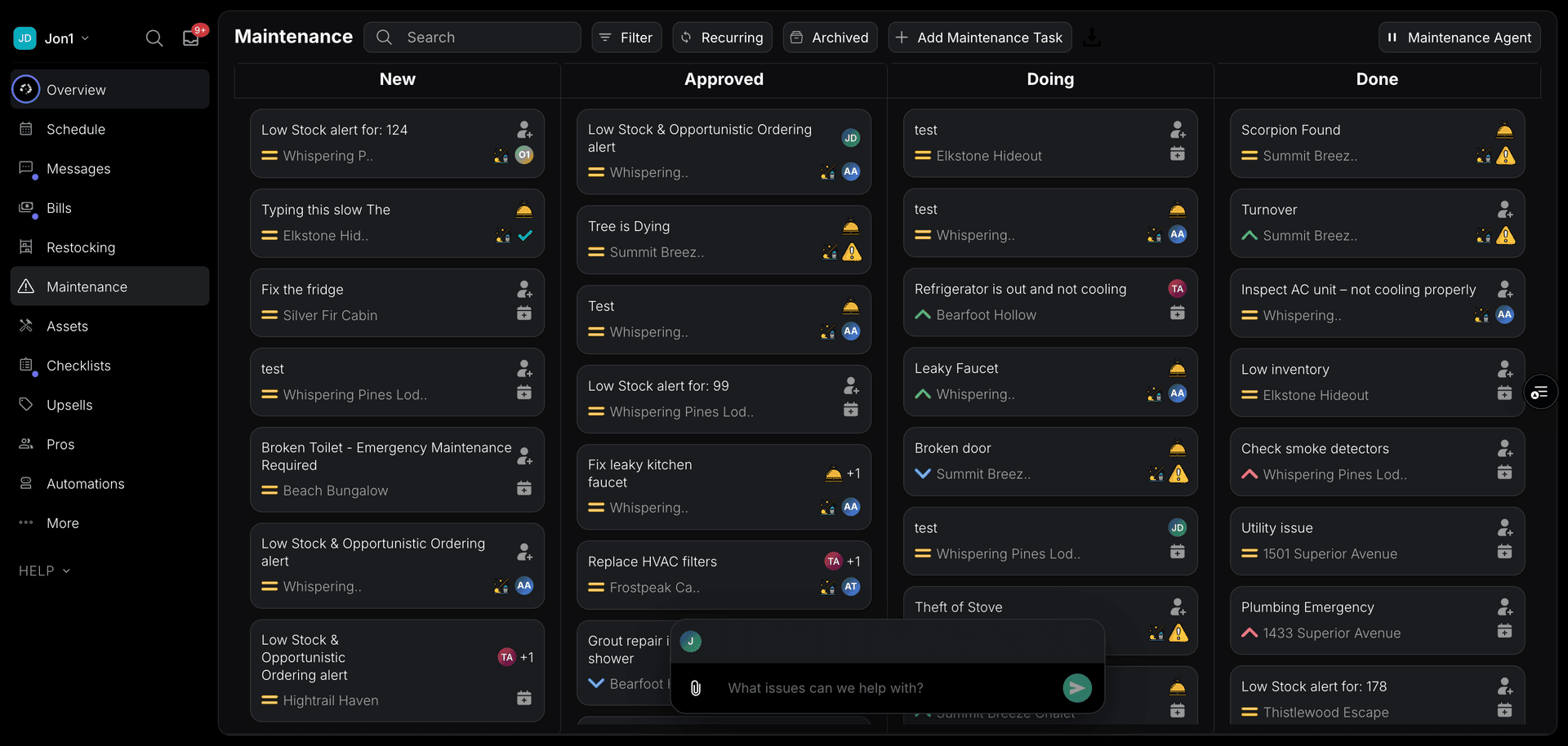
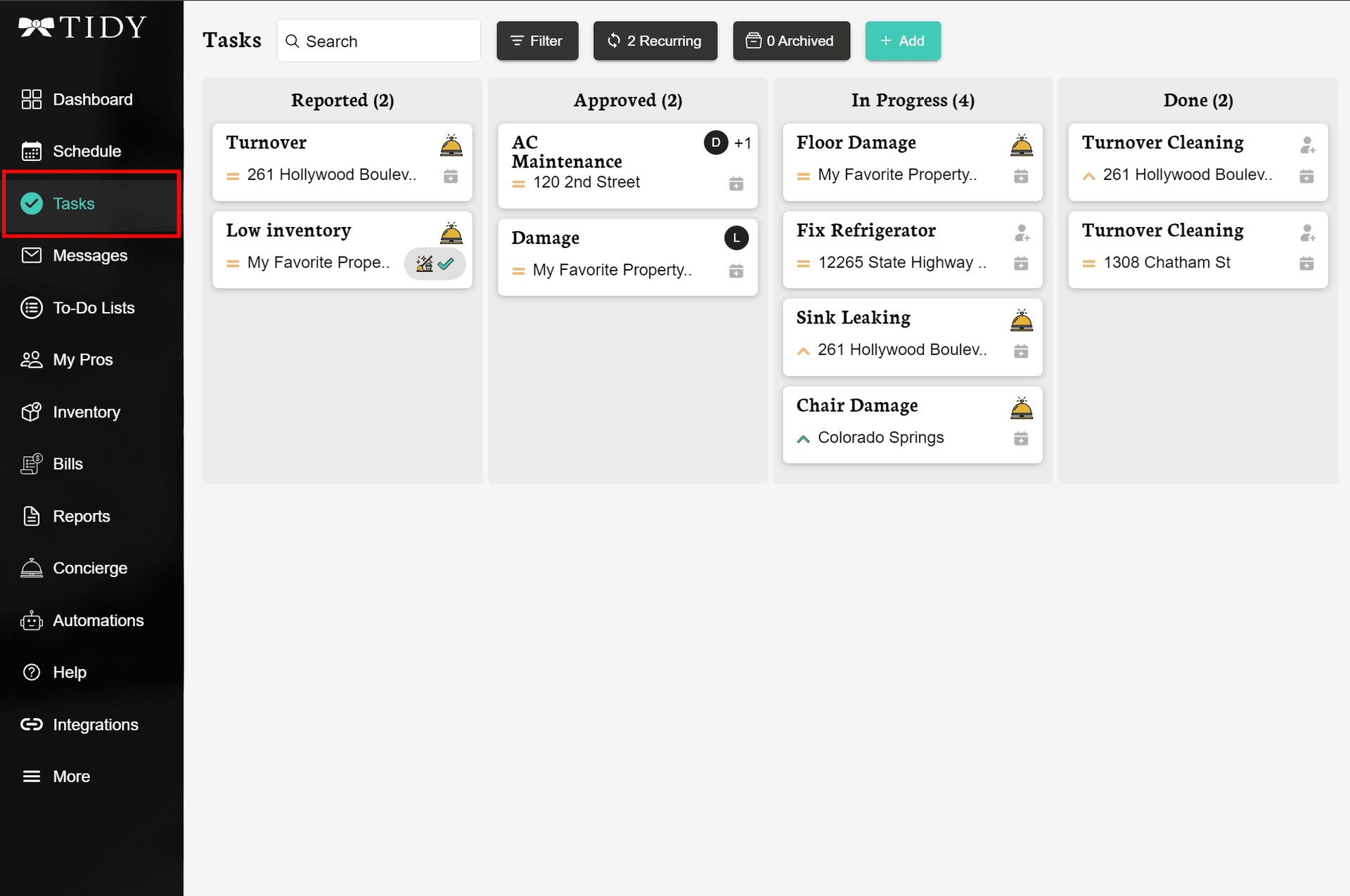
The Maintenance section displays items in a Kanban-style board with four columns: New, Approved, Doing, and Done. This helps you visualize the status of all maintenance items at a glance and track progress through your workflow.
Maintenance Agent
The Maintenance Agent can help you manage maintenance items automatically. It can triage incoming issues, suggest assignments, and help prioritize work based on urgency and your preferences.
Section 8 Inspection Repairs
Findings from a Housing Choice Voucher inspection flow directly into maintenance. TIDY records the PHA’s severity, responsible party, correction deadline, and HAP risk; creates the repair work; books approved work with your pros; collects completion evidence; and coordinates verification or reinspection.
Life-threatening owner-responsible deficiencies are treated as emergency work. Other cited items use the PHA’s deadline or approved extension. If a repair exceeds your configured authority, TIDY asks for approval with the finding, deadline, and estimate attached rather than leaving you to reconstruct the case.
See Section 8 & Housing Choice Vouchers for inspection preparation, payment withholding or abatement, and reinstatement.
Creating a Maintenance Item
The "Maintenance" section is located on the navigation menu on the left. On the mobile version, you can find it in the bottom navigation or the "More" menu. You can also access Maintenance from the Dashboard section of your account.
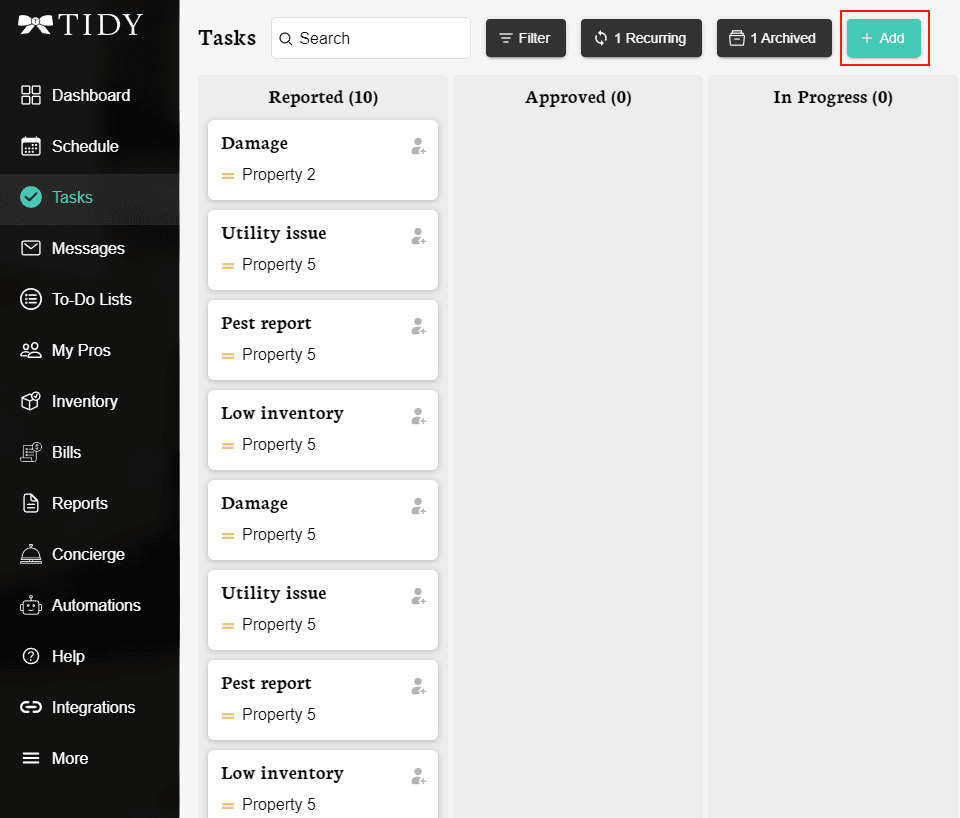
To create a maintenance item, tap the +Add button.
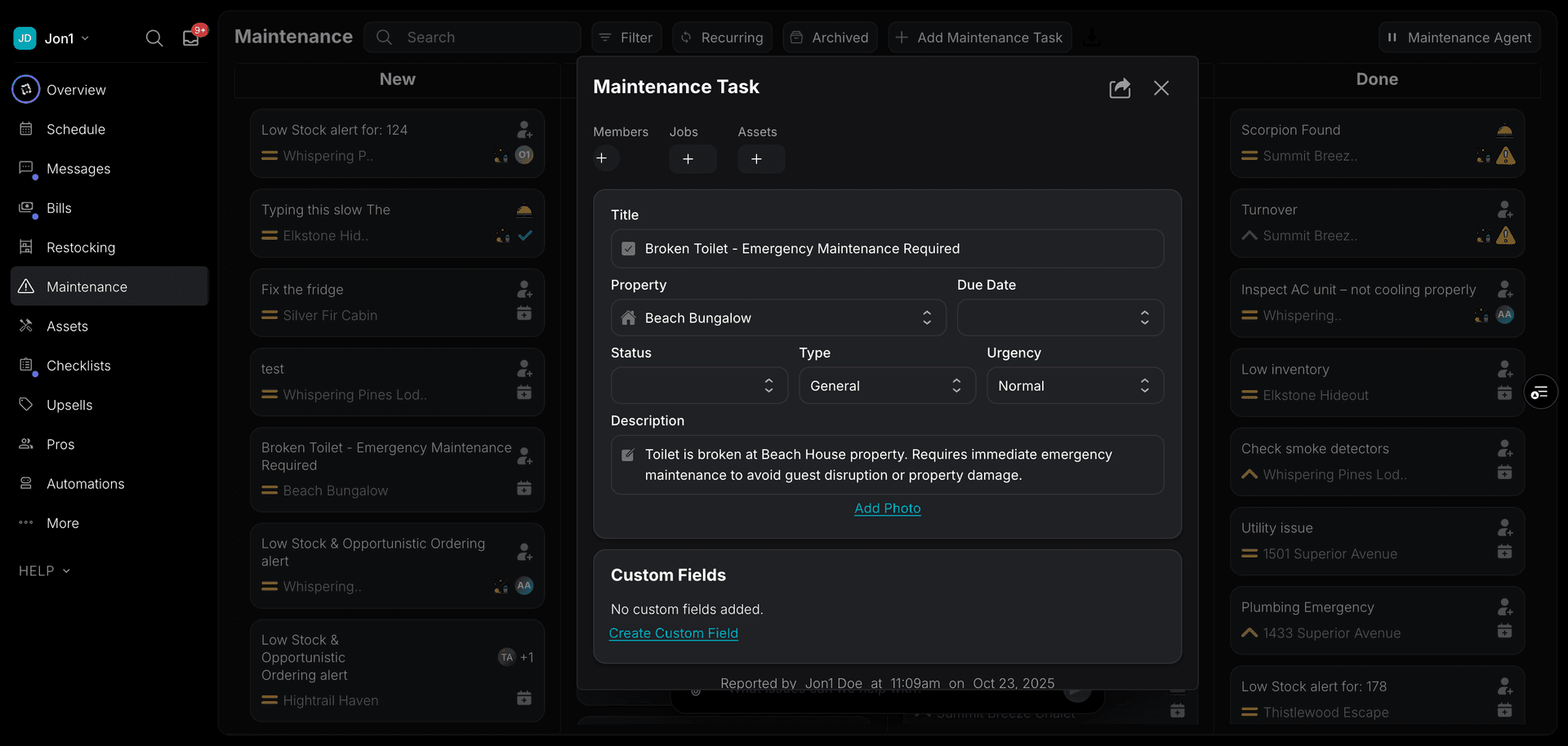
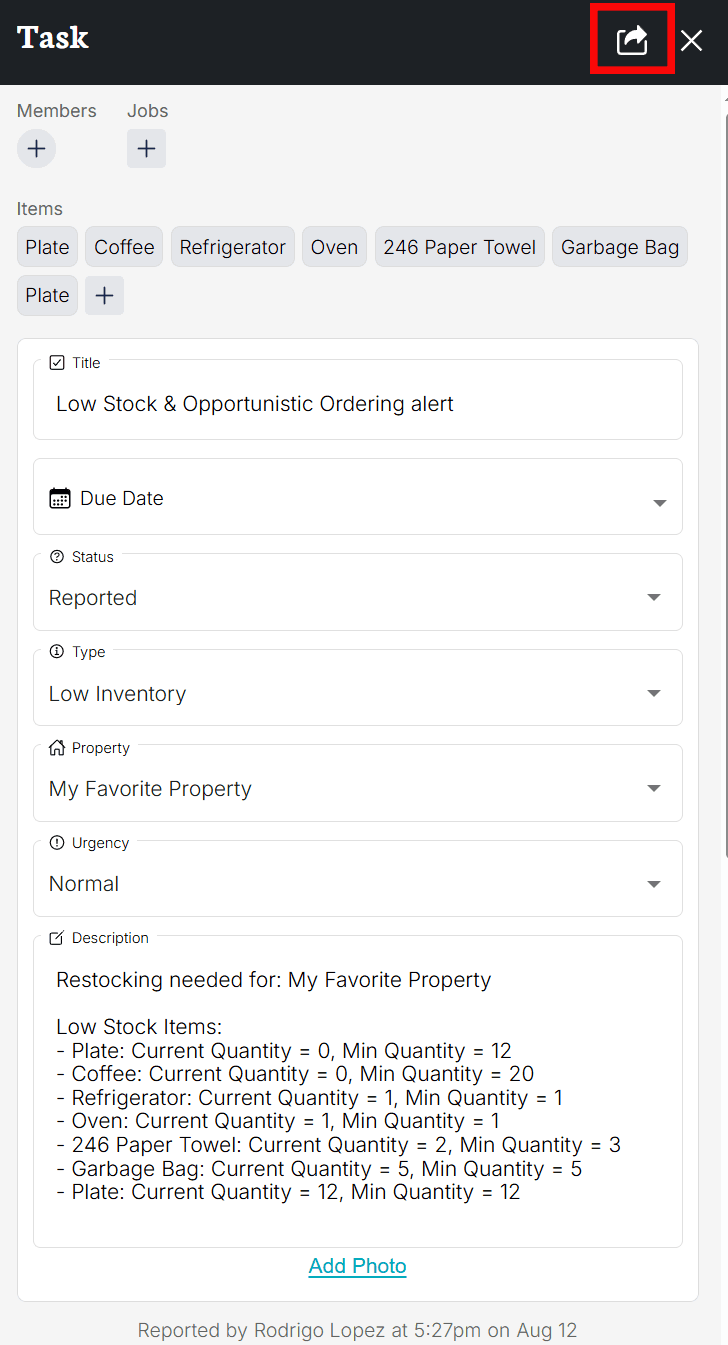
You can give the item a title, set its due date, select the type (Low Inventory, Pest Report, etc), select the property it is assigned to, the urgency of the item, give it a description, and add photos if needed.
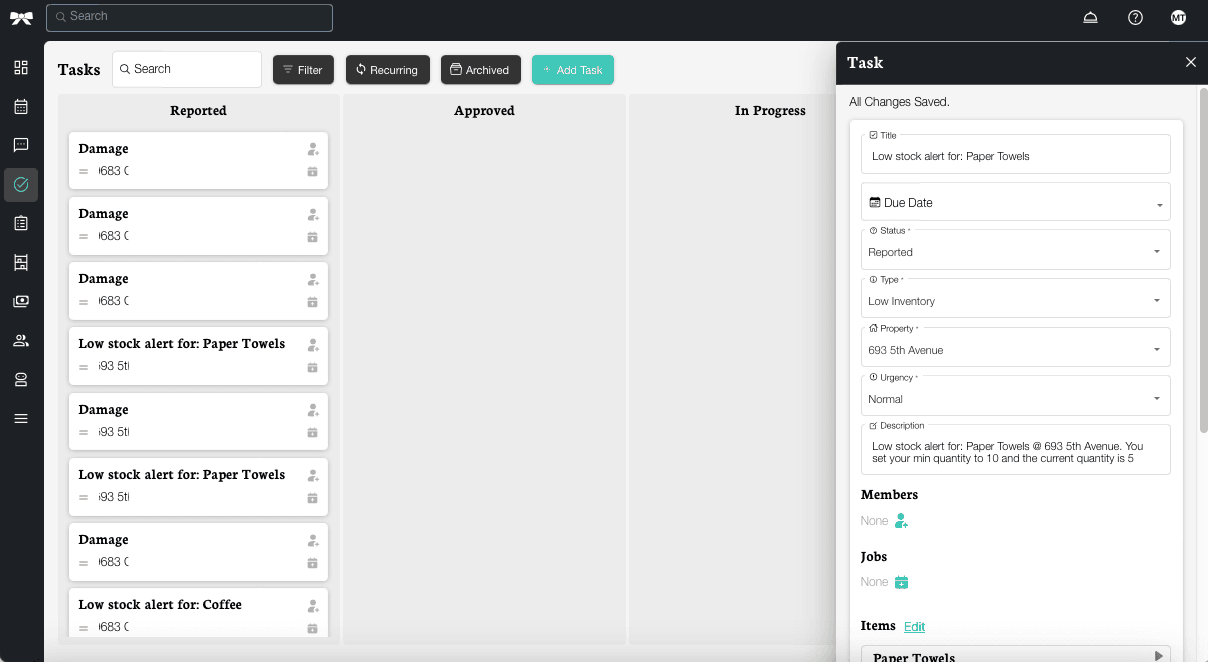
You can select which user on your account will take care of the item and assign it to them, or even assign it to the Concierge. You can also assign the item to a specific job on your schedule or link it to an item from your Inventory.
Tap the share button at the top of the side panel to get a direct link to a specific maintenance item. This link can be shared internally with members in the account.
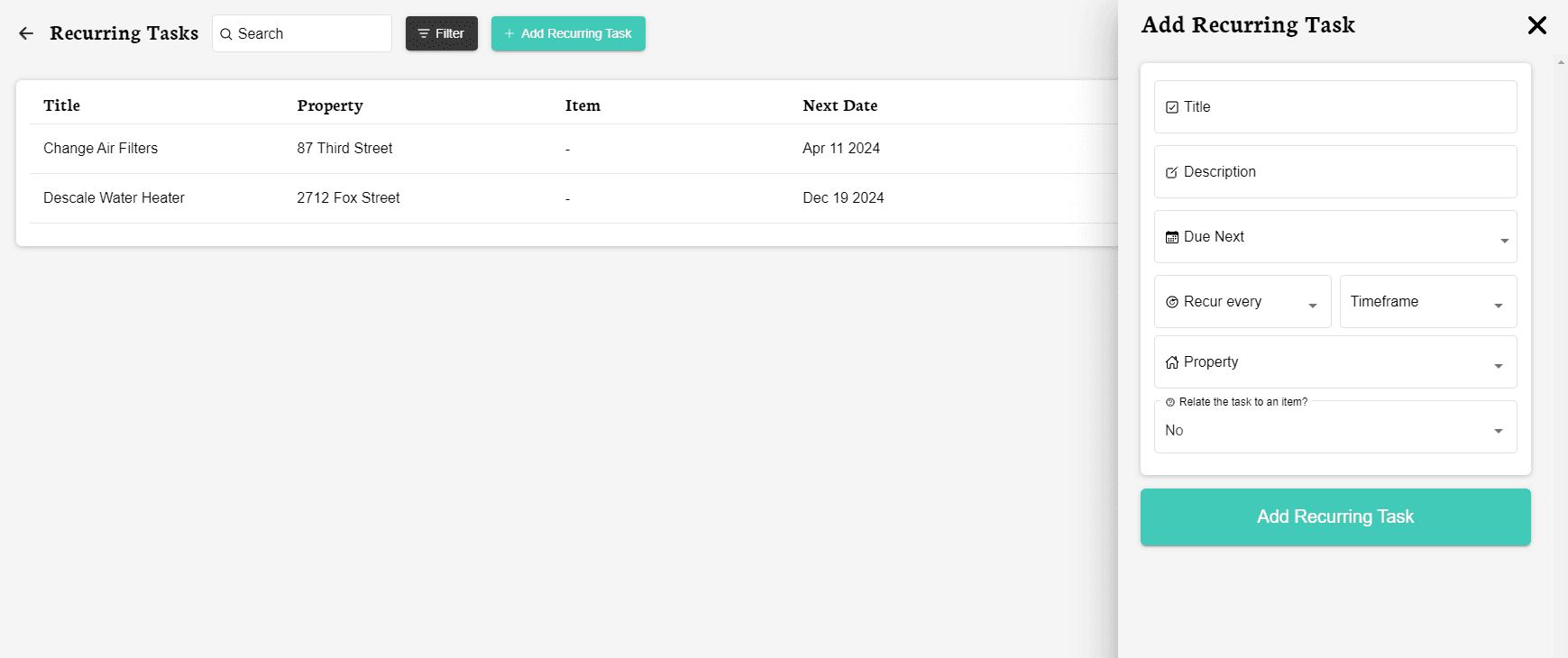
You can create Recurring Maintenance items by tapping in the "Recurring" section of the page. Tap the "Add Recurring" button to set the item’s information, such as its due date, frequency, and even the timeframe.
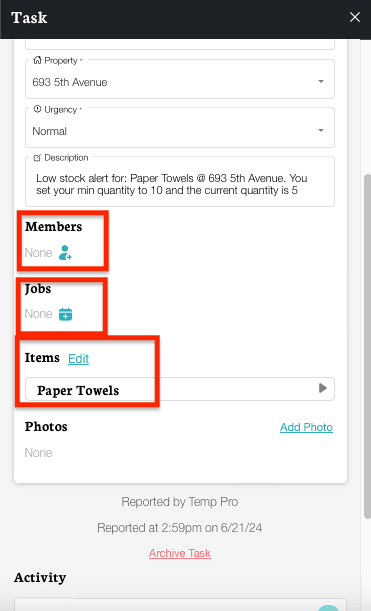
The date, time, and name of the person who created the item will be displayed right at the bottom of the page.
Any updates made to maintenance items will appear in the Activity section located at the bottom of the item. This feature is especially helpful when multiple users are making changes, ensuring everyone stays informed.
You can mark an item as archived, and it will be automatically moved to the "Archived" section. You can also unarchive or delete the item and permanently remove it.
Please note that you can only delete archived items.
Issue Types
When creating a maintenance item, you choose a type to categorize the issue:
- Damage — Physical damage to the property or items (broken fixtures, stains, etc.)
- Low Inventory — Consumable items below the minimum stock level (cleaning supplies, toiletries, etc.)
- Pest Report — Pest sighting or infestation that needs attention
- Utility — Plumbing, electrical, or HVAC issues
- Other — Any other maintenance concern that doesn’t fit the above categories
Urgency Levels
Each maintenance item has an urgency level to help you prioritize your work:
- Low — Can be addressed when convenient. No immediate impact.
- Normal — Standard priority. Should be handled in the normal course of work.
- High — Should be addressed soon. May affect guest experience or property condition.
- Emergency — Requires immediate attention. Safety risk or major operational impact.
Filtering and Exporting
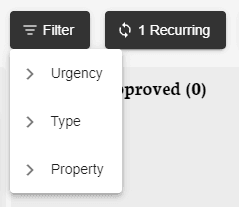
You can use multiple filters to search your maintenance items, such as the urgency, type, and property the item is assigned to.
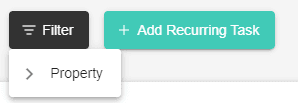
For Recurring items, you can filter by properties.
You can also export your maintenance items to a CSV file for use in spreadsheets or other tools. The export includes all items matching your current filters, so you can narrow down the data before exporting. Look for the export/download option at the top of the maintenance board.
Pro-Reported Maintenance
Pros can also log maintenance items on their side when completing services on your property using TIDY.
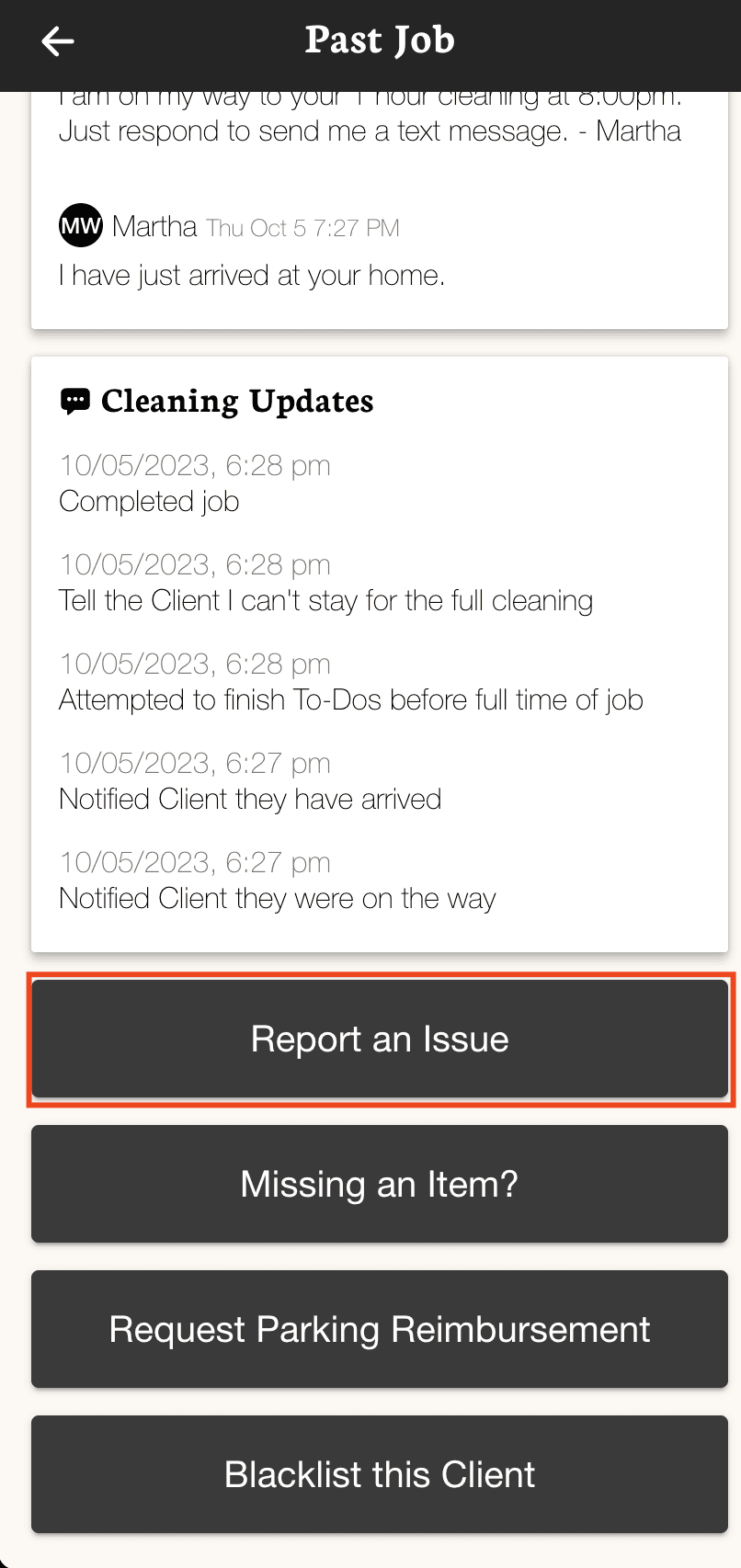
Pros will also be able to log an issue once they complete the service. This option will be available on the "past job" page in their app.
Damage, utility, pest, and low inventory issues will be automatically displayed in the "Maintenance" section of your account.
Explanation of the Different Stages
The TIDY maintenance board works as a pipeline, where items progress through various stages:
- New - Newly created items awaiting review
- Approved - Items that have been reviewed and approved for action
- Doing - Items currently being worked on
- Done - Completed items
You can drag and drop items between stages or update the status within the item detail view. Each stage can also trigger specific workflows that you can set up within your account. For example, when an item is marked as DONE, an automatic report can be sent to the property owner.
Action Plans
For complex maintenance issues that require multiple steps to resolve, you can create an Action Plan. An Action Plan breaks down a single issue into a series of ordered tasks, so your team knows exactly what needs to happen and in what order.
To create an Action Plan, open a maintenance item and look for the "Create Action Plan" option. Each step in the plan is tracked separately, and the Action Plan stays linked to the original maintenance item so you can see the full picture.
Recurring Maintenance Feature
The Recurring Maintenance feature is designed to help you streamline routine maintenance and inspections. With this feature, you can create items that repeat on a regular schedule—such as changing smoke detector batteries or performing heater inspections—eliminating the need to keep track of these activities elsewhere.
TIDY will help you and your team stay on top of these recurring duties, ensuring nothing is overlooked. This feature can be used for many different types of recurring maintenance to improve efficiency and maintenance management.