
TIDY Concierge
The Concierge combines our AI agent with 24/7 humans to help.
AI can make mistakes. Please verify important information.
Properties/Addresses
Properties (also called Addresses) are the foundation of everything in TIDY. Every job, checklist, pro assignment, integration, and bill is tied to a property. You can add properties one at a time, import them from a CSV file, or pull them in from a PMS integration.
Adding a Property
Tap the "More" section of the app, then you should see "Add Property" at the top of that page. You can also add properties from the Dashboard using the "+" button.
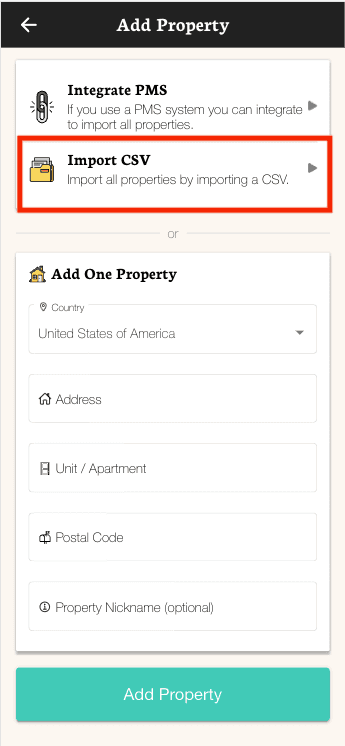
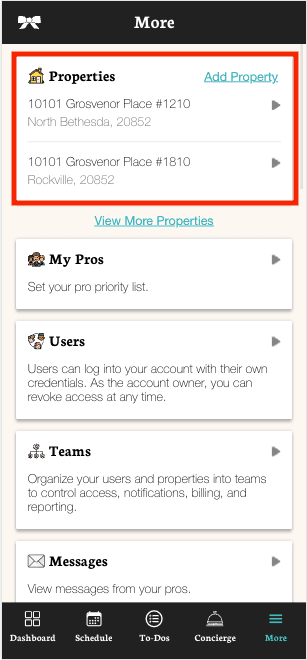

To add a property:
- Select your country
- Start typing your address — Google Maps autocomplete will suggest matches as you type
- Select the correct address from the suggestions
- Add a unit or apartment number if needed
- Enter your postal code
- Give the property a nickname (optional, but helpful if you manage many properties)
- Click "Add" to create the property
Tip:Giving each property a short nickname (like "Beach House" or "Unit 4B") makes it much easier to find properties quickly in filters, schedules, and reports.
My address isn’t in Google, I’m in a new development, what do I do?
Pros use Google Maps to find the home, so we validate it prior to booking. If your address is not showing up in Google, we recommend the following:
1) Pick the nearest address to your home that is detected by Google.
2) Add instructions on how to get to your address and access your home in the Home Access Notes section.
I have more than one unit at the same address, what should I do?
For multiple units under one address, we recommend adding each unit as a separate address. This way, you are able to have different to-do lists and make sure the Pro knows where to go. However, some other clients prefer just requesting the largest cleaning option and asking for only one job for both properties. If you choose this last option, we recommend making it clear to the pros, using the access notes, that they will clean two units during the time.
Importing Properties from a CSV File
If you have many properties to add, you can import them all at once using a CSV file instead of adding them one by one.
- Go to the properties page and click "Add Property"
- Choose the "Import CSV" option
- Download the CSV template to see the required format
- Fill in your properties (columns: Address, Unit, City, Zip, Nickname, Country Code)
- Upload your CSV file
- TIDY will validate each address using Google Maps and show you a summary
- Review the results — you’ll see which properties are valid, which are duplicates, and which had errors
- Remove any you don’t want, then click to add the rest
Tip: If some addresses aren’t found by Google, double-check the spelling and formatting. The system checks each address against Google Maps to make sure pros can find it.

I’m a rental client and I want to import my properties using integration, what should I do?
- To import your properties, you can go to the integrations page in more or,
- Delete all addresses in the properties page then will show the option to integration will appear.
Editing a Property
Open any property and tap the edit button to update its details. You can edit the following sections:
Property Name
Change the nickname at any time. This is the name that appears throughout TIDY in your schedule, bills, reports, and filters.
Parking Information
Let your pros know where to park and whether parking costs money. You can specify:
- Whether parking is free or paid
- Parking type: street parking, your driveway/spot, guest parking, meter, or paid lot
- For paid parking: payment method (cash or card) and maximum reimbursement amount
- Parking notes with additional instructions
- Photos of the parking area so pros can find it easily
Access Information
Tell pros how to get into the property. This is one of the most important things to fill out — clear access instructions prevent delays and missed jobs. Include:
- Written instructions for how to enter (lockbox codes, key locations, gate codes, etc.)
- Photos of entry points, lockboxes, or anything else that helps pros find their way in
Closing Information
Tell pros how to close up when they’re done. You can add text instructions and photos (e.g., which doors to lock, how to arm the alarm, where to leave keys).
Property Details
Add architectural details about the property to help with maintenance planning:
- Building Type — Single Family, Condo, Apartment, Townhouse, etc.
- Roof Type — Asphalt, Metal, Tile, etc. (useful for maintenance scheduling)
- Square Footage — Helps with accurate job pricing and time estimates
Custom Fields
If you use a PMS integration, custom fields from your PMS will also appear on the property edit page. These can include text, number, or toggle fields that sync from your external system.
Photos
Each section (parking, access, closing) supports uploading multiple photos with captions. Photos help pros understand your property before they arrive, reducing questions and delays.
Property Colors
You can assign a color to each property for quick visual identification. Colors appear throughout TIDY — on your schedule, bills, dashboard map, and reports. This makes it easy to spot which property you’re looking at, especially when you manage many properties.
To set colors, go to the Property Colors page. Each property shows a color picker where you can choose a color. Changes are saved when you click save.
Deleting a Property
To delete a property, open it, tap the edit button, then scroll down to the "Delete" button.
You cannot delete a property that has scheduled jobs. You’ll need to cancel or complete all scheduled jobs for that property first. If the property has no upcoming jobs, you’ll be asked to confirm before it’s removed.
If you need to make other edits to the address itself (not just the name), you may need to remove the old property and add a new one. Contact us for help if needed.