
TIDY Concierge
The Concierge combines our AI agent with 24/7 humans to help.
AI can make mistakes. Please verify important information.
Leasing
Leasing is where TIDY runs your mid-term and long-term rentals — from an empty unit all the way through an occupied, rent-paying lease (and, when it comes to it, renewals, move-outs, or eviction). Every rental unit shows its current stage, and each stage has the right next action built in.
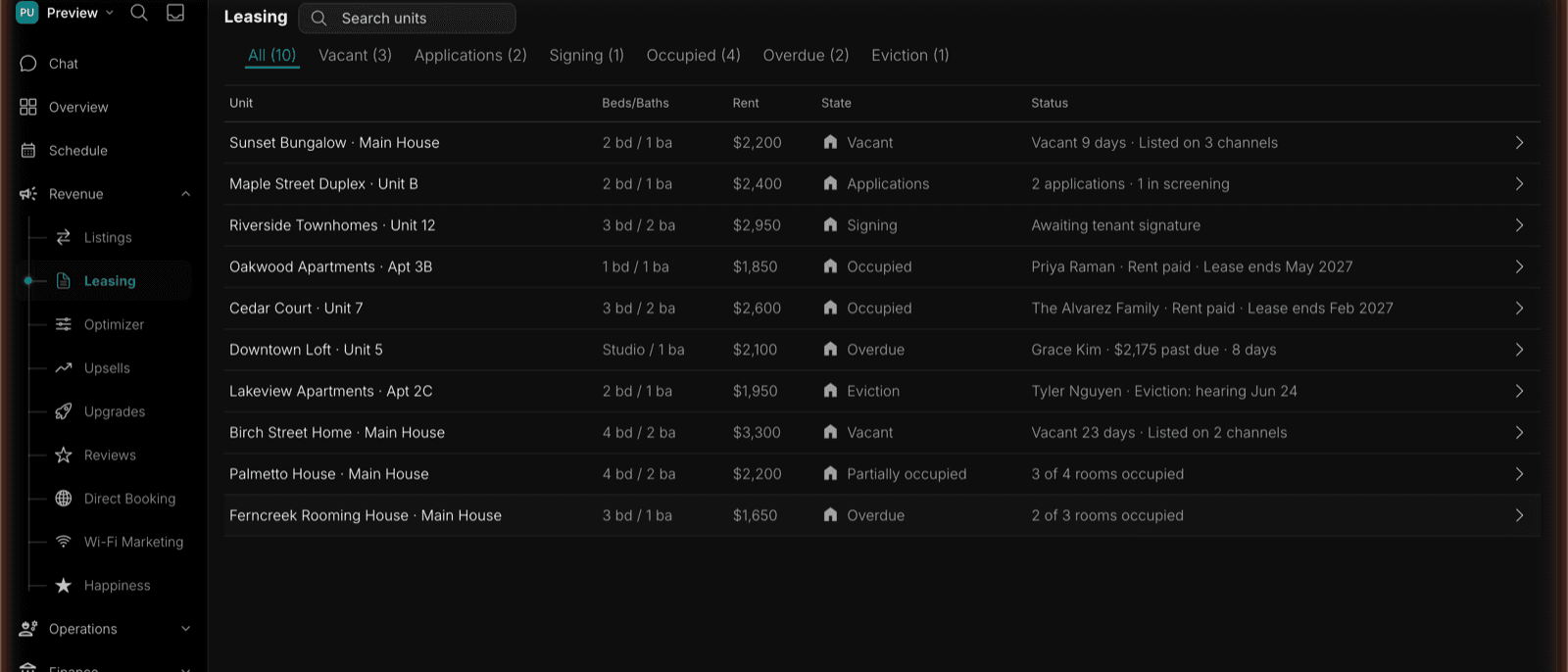
The Leasing Pipeline
Open Leasing under Revenue to see every unit and the lifecycle stage it’s in. The Leasing page has three tabs:
- Properties — the unit pipeline described on this page
- Screenings — every tenant screening you’ve run (see Tenant Screening)
- Leases — every lease and its ledger (see Leases & Ledgers)
On mobile, the same destinations are reachable from the More page — open the Revenue card and choose Leasing or Tenant Screenings. Detail screens open as full pages with a back button on mobile, and as a side panel on desktop.
The Properties List
Every rental unit appears as a row with its Unit, Beds/Baths, Rent, State, and a plain-language Status summary. Each property carries a colored house tag so you can pick it out at a glance, and the State column shows a matching colored dot.
Above the list are status filter chips — one per pipeline state, each showing how many units are currently in it. Click a chip to narrow the list to that state; click it again to clear. There’s also a search box that matches on property and unit name.
The Six Pipeline States
| Stage | What it means | Typical next action |
|---|---|---|
| Vacant | The unit is empty and available to market. | Market the vacancy across your listing channels. |
| Applications | One or more prospective tenants have applied. | Review applications and screening reports. |
| Signing | An applicant is approved and the lease is out for signature. | Track e-signature status. |
| Occupied | The lease is signed and the tenant has moved in. | Collect rent and manage the lease ledger. |
| Overdue | Rent is past due on an active lease, with late fees applied. | Send reminders and record payments. |
| Eviction | The lease is in the eviction process. | Track the case and required dates. |
Units rented by the room show a rolled-up state instead — for example Partially occupied when some rooms are leased and others are vacant — plus an occupancy count and a by-room indicator. Status filters match a split unit if any of its rooms is in that state.
Unit Detail
Click any unit to open its detail page. The header card shows the property, the current state, and a row of action buttons that change with the state:
| State | Available actions |
|---|---|
| Vacant | Share application link |
| Applications | Share application link, open each applicant |
| Signing | Send signing reminder, view lease |
| Occupied | Edit collection settings, send rent reminder |
| Overdue | Send late notice, start a payment plan |
| Eviction | Update eviction stage, contact attorney |
Below the header, the page shows the sections that matter for that state:
- Listing channels — every site the unit is listed on, with live/pending status. Links through to Listings.
- Applications — each applicant with their status, plus a Share link action that copies the public application link for this unit.
- Lease pending finalization (Signing) — a per-party signature checklist showing who has signed and when.
- Automatic Collection Settings — autopay on/off, payment method, due day, and the late-fee rule and grace period.
- Rent overdue (Overdue) — days overdue, the past-due balance, how much of it is late fees, and the original due date.
- Eviction — a step checklist (notice served, filing, hearing, and so on) with dates.
Applications & Screening
When prospective tenants apply, their applications land in the pipeline with the applicant’s details, the listing channel, assistance information, and screening report. TIDY applies the written policy and approval authority you configured, completes routine decisions, and routes exceptions to you. If an applicant uses a Housing Choice Voucher, approval opens the PHA tenancy workflow instead of sending an ordinary lease immediately.
- Review applications in Rental Applications
- Understand background checks in Tenant Screening
Section 8 Housing Choice Voucher Leasing
A voucher unit keeps its normal Leasing stage and adds a Section 8 case with the program gates required for PHA-authorized move-in: voucher and PHA confirmed, owner setup complete, Request for Tenancy Approval submitted, rent approved, inspection complete, tenancy approved, and the lease and HUD tenancy addendum signed. TIDY also submits and tracks the HAP contract through PHA execution; when the PHA uses the permitted post-start execution window, that contract remains an explicit pending gate rather than blocking an otherwise authorized move-in. TIDY prepares submissions, follows up with the PHA, coordinates inspection and repairs, and sets up the two-source rent ledger.
See Section 8 & Housing Choice Vouchers for the complete process from owner enrollment through move-out.
Split Rentals (Rent by the Room)
A unit can be rented whole (the default) or split into individually-leased rooms — split units show per-room occupancy like “3 of 4 rooms occupied,” each with its own lease and screening. See Room Splitting for the full picture.
After the Lease Is Signed
Once a tenant is in, the money side lives under Finance:
- Collect rent and send reminders — Rent Collection
- Track charges, payments, and balances — Leases & Ledgers
- Hold and return deposits — Deposits
TIDY runs the pipeline under your authority. You set the screening, approval, repair, and collection rules once. TIDY applies them, completes the routine work, and brings you decisions outside that authority. You still sign owner documents when legally required, and a PHA or court retains any decision the law assigns to it.