
TIDY Concierge
The Concierge combines our AI agent with 24/7 humans to help.
AI can make mistakes. Please verify important information.
Messages
TIDY’s Messages feature is the shared inbox for property work — pros, guests, residents, vendors, and agencies. Authorized team members can see the relevant conversation history, while sensitive case information stays limited to the people who need it.
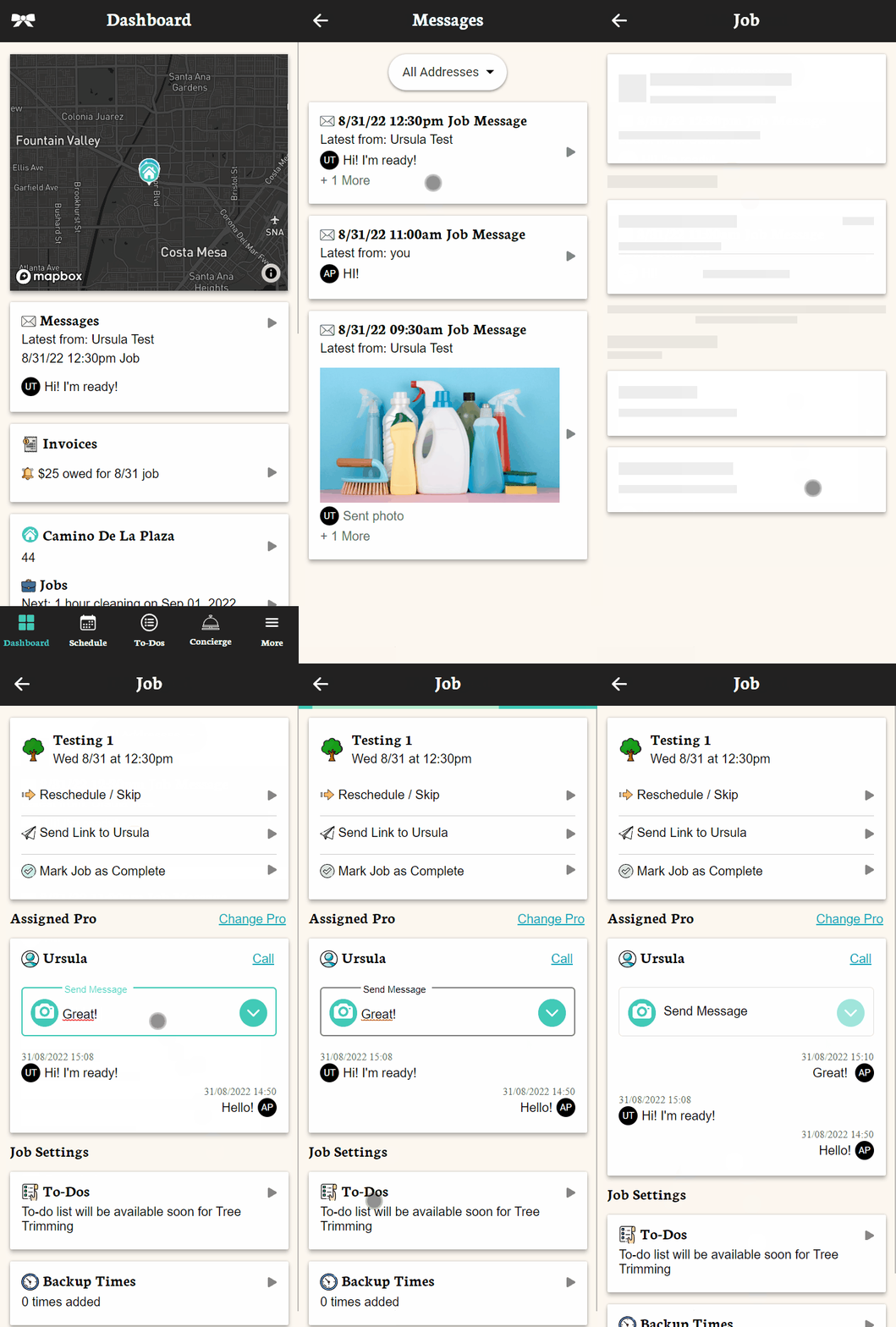
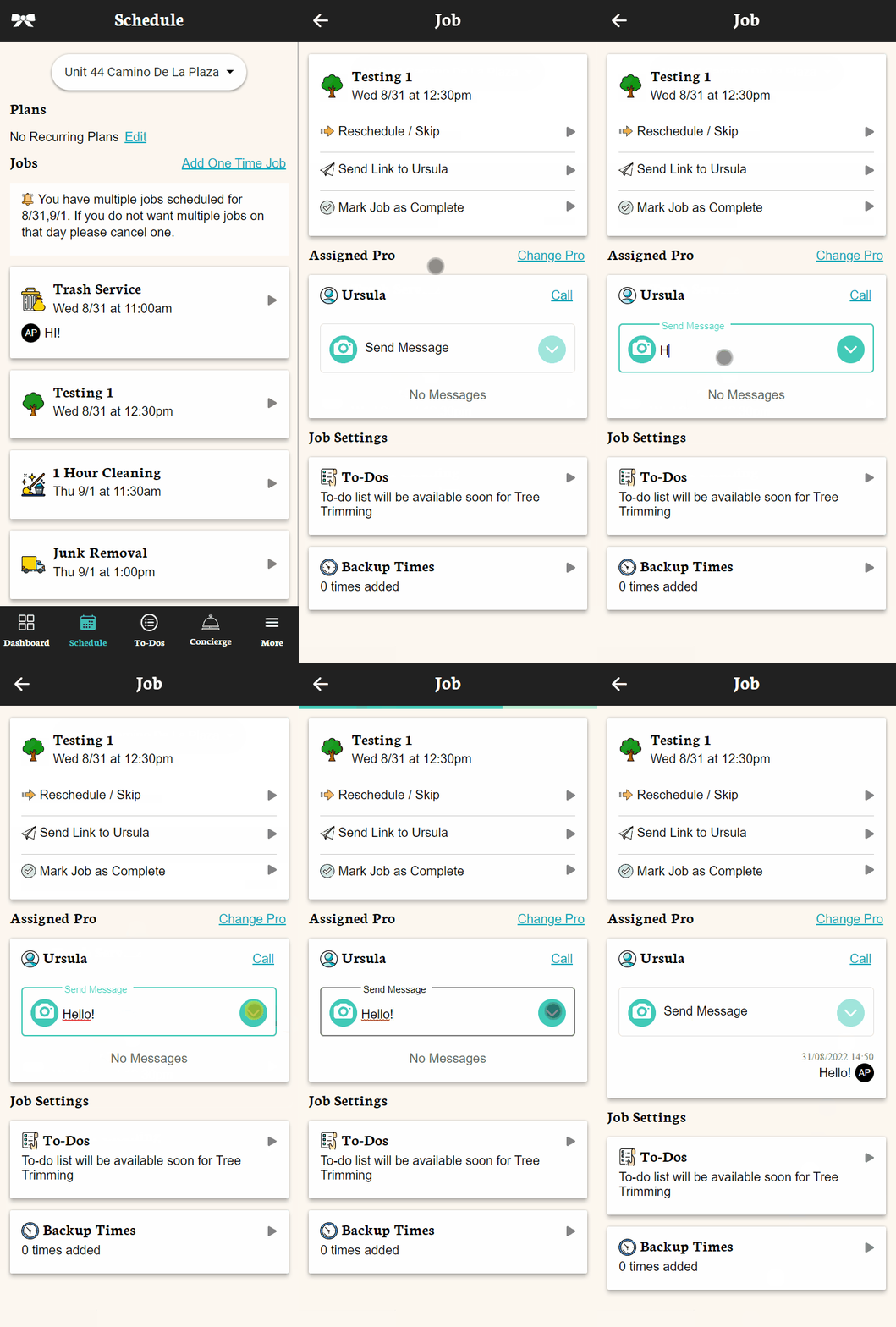
Page Layout
On desktop, the Messages page uses a split-panel layout: your conversation list is on the left, and the active chat thread is on the right. You can browse conversations and read messages side by side.
On mobile, you see your conversation list full-screen. Tap any conversation to open the chat thread full-screen. Use the back button to return to the conversation list.
Types of Conversations
Your general Messages inbox includes three types of conversations:
- Direct Pro Messages — Standard back-and-forth conversations with your pros. These are routed through TIDY so your whole team can see them.
- Smart Number Messages — Messages sent and received through TIDY proxy phone numbers. These let guests and pros text a TIDY number, and those messages appear in your inbox. See the Smart Numbers doc for details.
- Job Activity Messages — Automatic entries created when job-related activity happens, like a status change, a note being added, or a pro completing a task. These keep a running log of what happened on each job right in your message thread.
Section 8 Case Correspondence
TIDY keeps every PHA interaction on the Housing Choice Voucher case: the RFTA submission, inspection appointment, deficiency notice, repair proof, rent decision, HAP statement, recertification request, and renewal or rent-increase response. Each entry records the sender, recipient, date, related document, and next action.
TIDY sends routine follow-ups automatically and escalates when the PHA requests an owner signature, a repair exceeds your authority, or a decision needs legal review. Restricted accommodation and VAWA correspondence is not copied into the general inbox. Agency correspondence is opened from the Section 8 case, while its routine status updates and escalations also appear in the Agent thread on Messages.
At the top of the Messages page, you’ll see tabs for "Guest #", "Pro #", and "Agent". Use these to quickly switch between Smart Number conversations and to access Message Agent settings directly from the Messages page.
Starting a New Conversation
To start a new conversation with a pro:
- Click the "+" button on the Messages page
- You’ll see a list of all your pros
- Select the pro you want to message
- If you’ve messaged them before, it opens the existing conversation. Otherwise, a new thread is created.
You can also start a conversation from any job — just open the job details from the Schedule page and tap the message option.
Search and Filtering
Use the search box at the top of the conversation list to quickly find conversations by name or message content. Results filter in real time as you type.
Sending Messages and Attachments
Type your message at the bottom of any conversation thread and hit send. You can also:
- Attach photos and files — Click the attachment button to select images or files to send. You can preview images before sending and send multiple at once.
- Scroll up for history — Scroll up in any conversation to load older messages. Messages load in batches as you scroll.
Tip: Attaching photos is great for sharing property photos, documenting damage, or sending instructions to pros with visual references.
Communication is Hard
We have heard from many customers about the pain of managing communication with cleaners and maintenance people on your properties. The problems include:
- It is hard for teams to communicate as a team with cleaning & maintenance vendors. For example, what happens if your company’s vendor’s point of contact is on vacation?
- You want to communicate in the systems you already use (like Slack).
- Pros want to work a different way (like SMS).
Many customers have tried things like shared WhatsApp or Slack channels, but these are unwieldy and not meant for this.
How Messaging in a Shared Inbox Makes Communication Easier
TIDY’s Messages feature is a "shared inbox" which centralizes all communication into TIDY. Here is how it works:
- Anyone in your team can see all messages from the pro. This allows your whole team to work together seamlessly. Someone on vacation? No problem. Anyone can step in.
- You can control permissions for users, granting limited access to people as needed.
- All messages sent using TIDY’s apps or connected channels are visible to all users in your account.
- Anyone on your pro’s team can see your messages from anyone on your team, so their team shares in this benefit.
To use this feature, just tap any job, and you will see the option to message your pro. Any user on your account who can see that job, can view messages and send them.
Unread Messages
TIDY’s Messages feature also provides a clear indication of read and unread messages, making it easier for users to stay updated on the latest communication.
How Read/Unread Messages Work
- Unread messages: Messages are marked as unread until they are viewed within the TIDY software. If you read a message on a different platform, TIDY does not track that activity, and the message will still be marked as unread within the TIDY interface. To make it easy for users to identify unread messages, they are highlighted. This visual cue ensures you can quickly spot new messages and respond accordingly.
- Read messages: Once a message is viewed in the TIDY software, it is automatically marked as read. The read status helps you and your team stay informed about which messages have been acknowledged and which still need attention.
- New messages will automatically appear in the "Messages" section within a few seconds after being sent. No need to keep refreshing the page.
Please note that TIDY’s read/unread tracking applies only to messages viewed within the software. If you read a message on another platform, the message will still be marked as unread within TIDY. To ensure accurate read/unread status, we recommend using the TIDY platform to view and manage all your job-related communication.
Notification Integrations
You want communication tied into the tools you already use. We support Notification Integrations. Notification Integrations takes the Shared Inbox to the next level, by allowing both you and your pros to get notifications where each of you independently prefer.
We support pretty much any integration with either webhooks, open API, Zapier, and our pre-built library of integrations. So far, pros most often prefer SMS, and property managers most often prefer Slack. We support the following integrations, with more coming:
- Slack
- Microsoft Teams
- Salesforce
- Hubspot
- Intercom
- Monday.com
- Asana
- Pipedrive
- Zoho
- Zapier
- Webhooks
- API
If you ever want a new integration, please reach out!
Messaging on a Job
You can send and receive messages for any job/service, and view them on both the job itself (through the Schedule section) and the Messages section of your app.
The messages will be segregated by Pros and/or Guests, and every message that has been sent or received from this specific Pro/Guest will be available in the thread.
This is very helpful to organize communication, so you can easily see the exact context of the communication. Here are some notes on how these messages work:
- When you chat in the app, the chats appear on the job for all people who have permission to view that job, as well as in the Messages section.
- The other party will get an in-app notification.
- If there is only 1 user on the account, and you have a phone number added, then you will get SMS notifications, and you can reply to those messages.
- You can also set up alerts to receive messages in another channel (e.g. Slack Notifications). This is a way to know that you got these messages.
To send a message, you can either access each job (through the Schedule view) or access the Messages section of your app.

New messages will also be displayed on the Dashboard page. To reply, just click on the message, which will direct you to the Messages section. This page contains the entire history of conversations between the Pros and you.
