
TIDY Concierge
The Concierge combines our AI agent with 24/7 humans to help.
AI can make mistakes. Please verify important information.
Bulk Upload
You can find this feature in the More section:
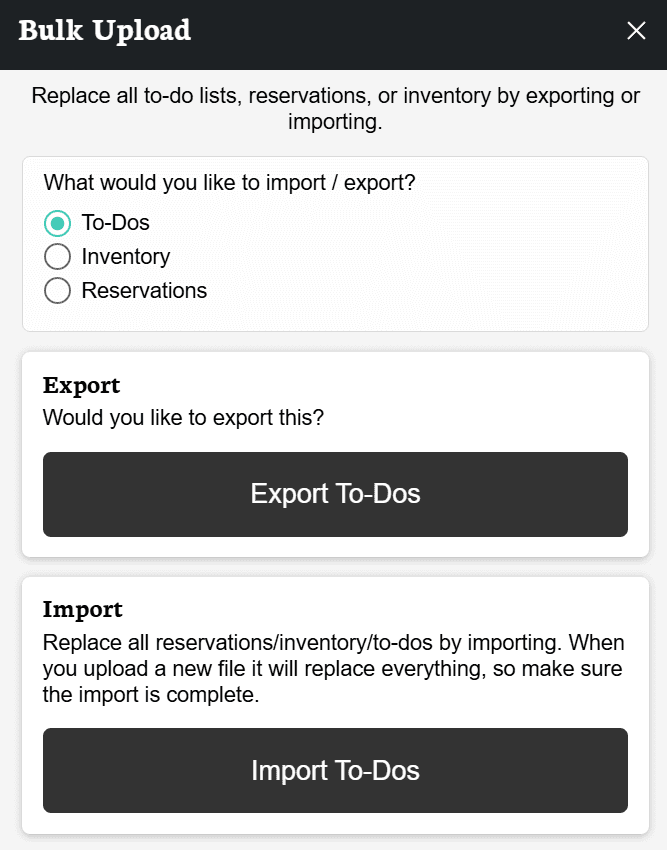
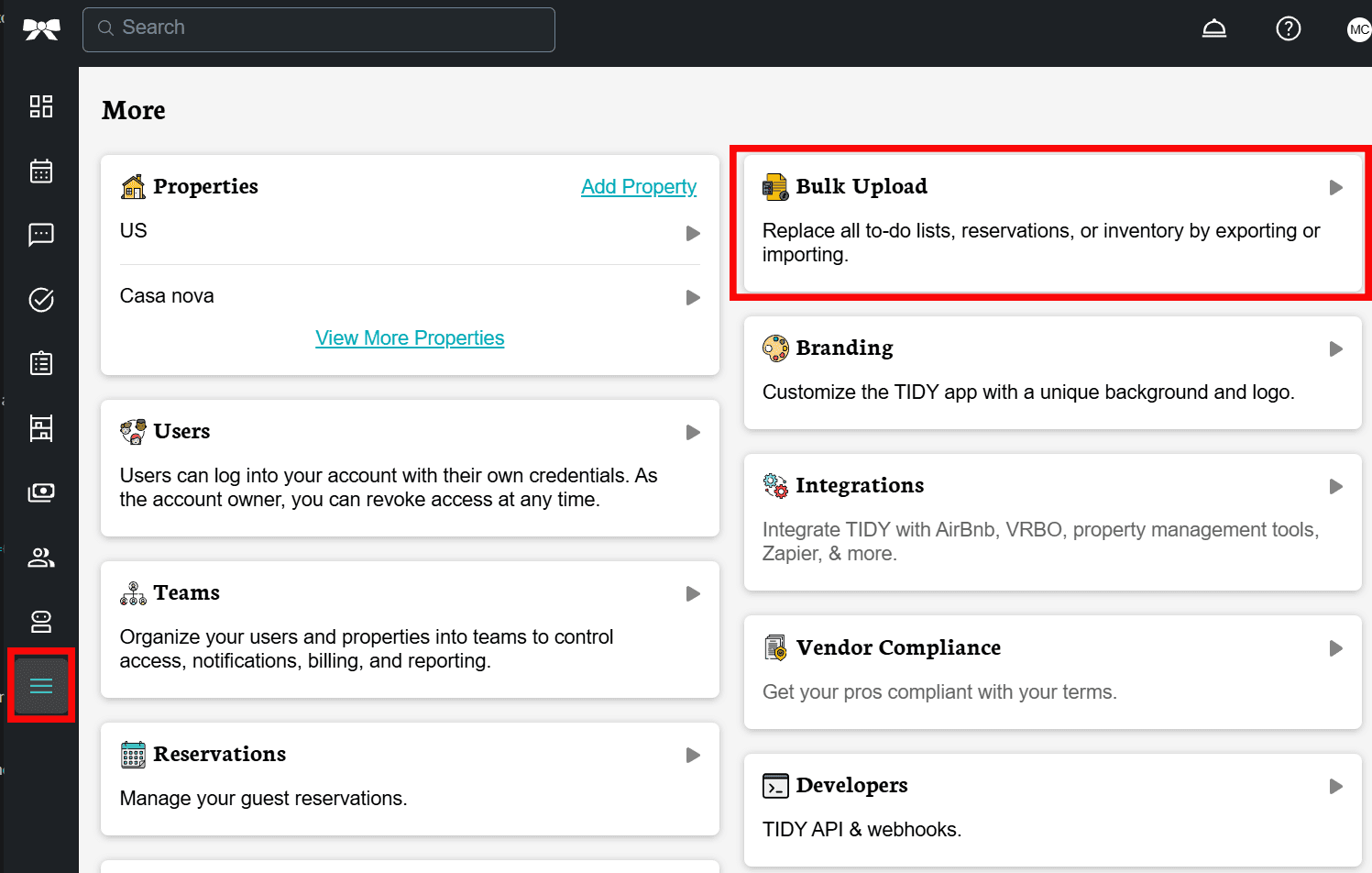

Here you’ll find a simple way to either export or import the data of your checklists, reservations, and inventory.

- Export lets you export the current data of your choice by downloading a CSV File.
- Import replaces all the current data of your choice by uploading a CSV File.
How "Replace" works for reservations
When you import reservations in replace mode, TIDY compares your file to what’s currently in the account and removes anything that’s missing — but only if that reservation is still upcoming or in progress. Once a reservation has already checked out, TIDY leaves it in place even if it’s no longer in the file you upload, so your past reservations and their associated cleanings aren’t wiped from your history.
In practice, this means each import only affects reservations whose checkout date is on or after the day you upload the file. If you don’t upload an updated file for a few days, any reservations that should have been cancelled and had check-out dates that already passed will not automatically be cleaned up on your next import — you would need to remove those manually.
To make sure you’re using the correct file format, we recommend exporting the data you want to replace first. This will give you a clear example of how your file should look for uploading.
Note that only .csv files will be imported