
TIDY Concierge
The Concierge combines our AI agent with 24/7 humans to help.
AI can make mistakes. Please verify important information.
View, Edit, or Cancel Jobs
Viewing Jobs
To view upcoming jobs, make sure you are logged in at tidy.com or one of our mobile apps, and go to the Schedule section. Your next few jobs will appear with details about each job. If you have a recurring plan, jobs that are more than a few weeks ahead may not appear until they are closer.
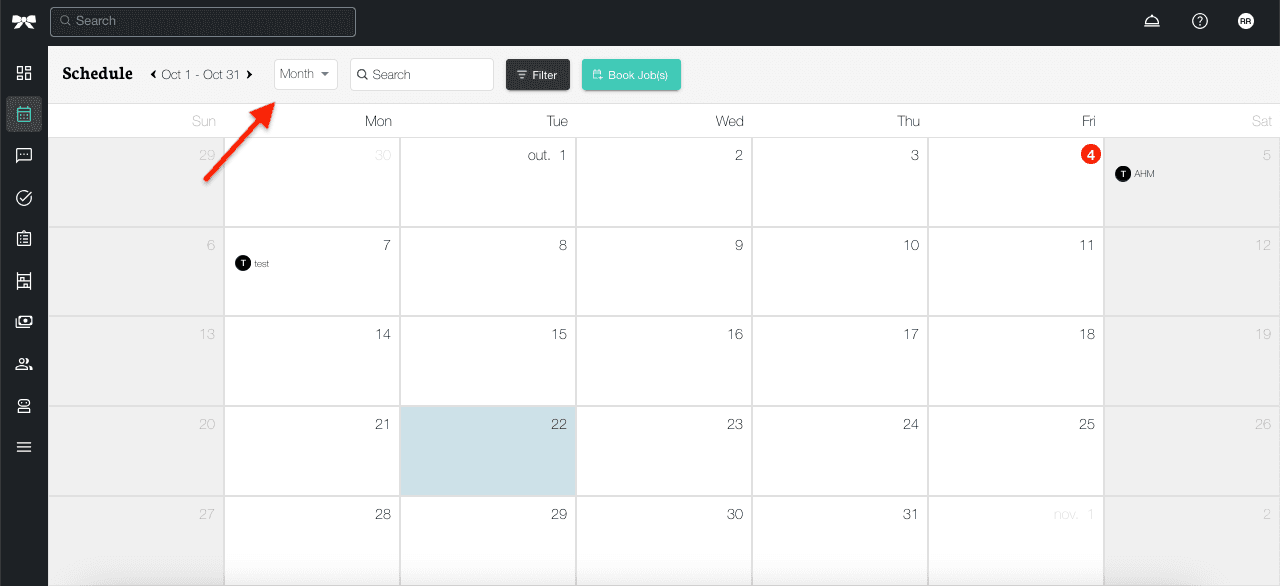

Your next job will show expanded details, options, and real-time updates, so it's helpful to log in and view your Schedule section when you have a job coming up.
Calendar View
TIDY’s calendar helps manage multiple properties, providing quick access to all cleanings and reservations on your properties. To view your calendar, navigate to the "Schedule" section.
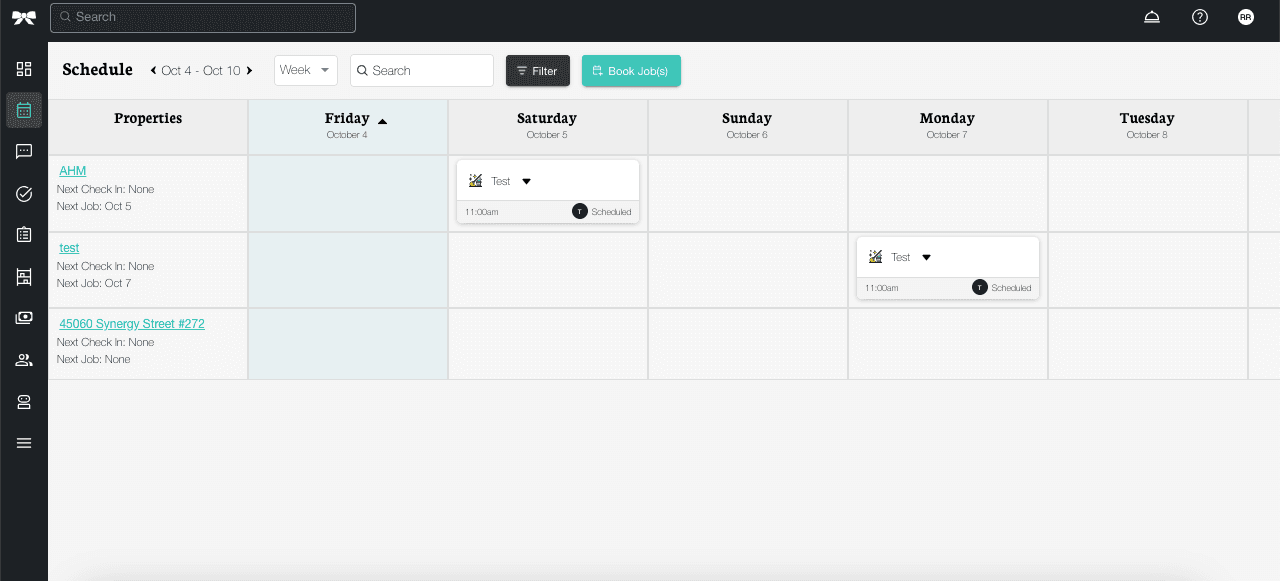
Here, you’ll have different views of all properties, reservations, and scheduled jobs. You can switch between five different views using the drop-down menu. Your chosen view is remembered between visits.
- 7 Days - A rolling view starting from today showing the next 7 days. This is the default view and is best for day-to-day management.
- Week - Shows Monday to Sunday of the current calendar week. Useful if you plan around a fixed weekly schedule.
- Month - A full calendar grid for the current month. Each day shows up to 3 job entries; click a day to see everything happening.
- Day - An hour-by-hour time grid from 6am to 10pm. Click any empty time slot to quickly book a new job at that time.
- List - A sortable table of jobs and availability requests. You can sort by any column and use date range presets to look at historical or upcoming work.
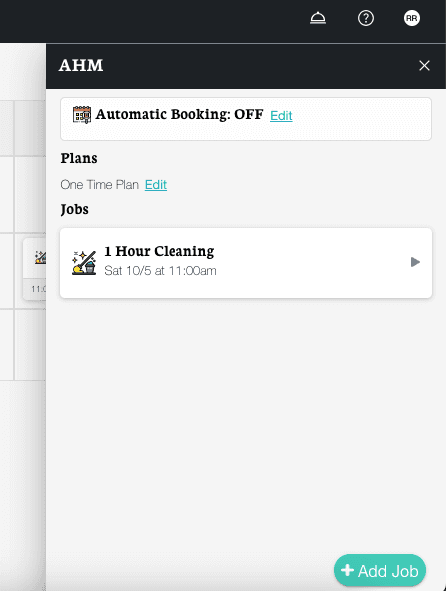
Once you select a property, you will be able to see all scheduled appointments for that property.

For the weekly view, the Calendar View will display cleanings and reservations 7 days from the current day. For the monthly view, you’ll be able to see all job details for the current month. To see the following days/months, click on the forward arrow located at the top left of the table.
Rescheduling or Editing Jobs
You can use the "Reschedule" feature on any upcoming job to change:
- The date and time
- The assigned pro
- The service type
To reschedule a single job:
- Click the job on your schedule
- On the job details page, click "Reschedule"
- Make your changes (the form is pre-filled with the current details)
- Confirm, and the updated booking replaces the original one
You can also edit the full plan, which will change the plan to a new regularly scheduled day, time, frequency, pro, or service type.
To reschedule a plan, just tap "Edit Plan" in the Schedule section. Then, hit "Reschedule Plan".
If you have had a pro listed in your "My Pros" list for the address, you can select them, or just make a request to your full list.
Now, just select the time and available data to reschedule the job with your favorite pro.
Note that rescheduling or editing a job is subject to availability and may result in cancellation fees, so it’s generally best to make changes far in advance.
Once a job has started, we don’t have a way to edit or extend jobs inside the app. You can always negotiate a change with the Pro if you both agree. For example, if you wanted to change a job from 2.5 to 4 hours, you could ask the Pro and pay them a large tip for their time.
Cancelling Jobs
You can easily cancel or skip a job online. When you log into your account, you will see a list of your jobs.
- Click or tap the job you would like to cancel.
- Click or tap Skip on the job.
- Confirm, and you’ve skipped this job.
Cancellation / Reschedule Fees
We almost never see penalties or fees for canceling your service outside of the 24-hour window, unless you have made such an agreement with a Pro.
Waiving Cancellation Fees
Most Pros have a provision to waive your first cancellation fee by adding credit for a future appointment, to ensure that appointment gets rescheduled instead.
You can easily request to waive cancellation fees in the app. Just go to your "Billing History" (in the "more" section), then go to where you see the fee. You should see a link to "waive fees".
