
TIDY Concierge
The Concierge combines our AI agent with 24/7 humans to help.
AI can make mistakes. Please verify important information.
My Pros
"Pros" are the service providers who do jobs (sometimes these are called "Vendors"). You can manage your pros in the "My Pros" section of your app or online:


The Pro List
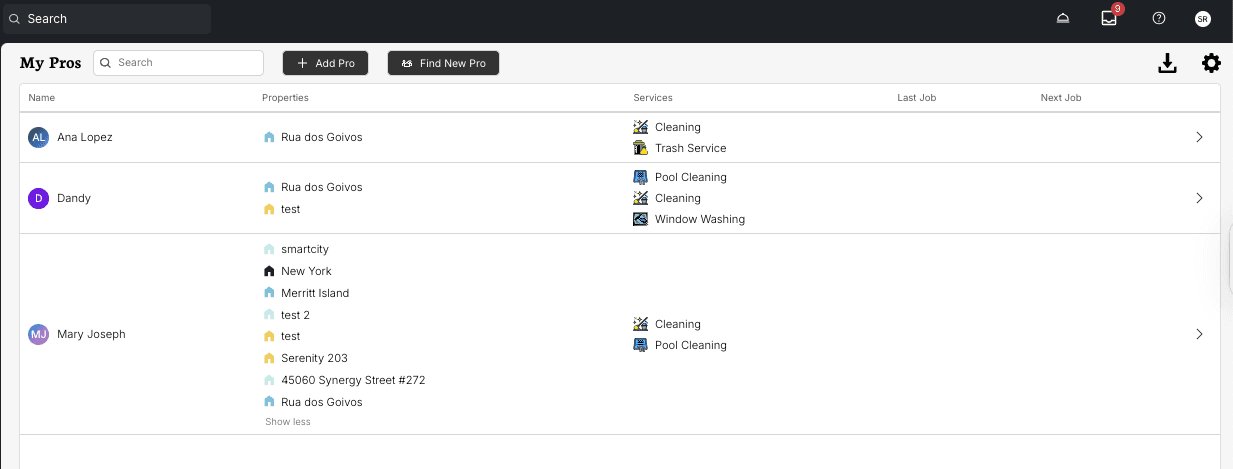
The My Pros page shows a table of all your pros across all properties. Each row shows:
- Pro Name — The pro’s name
- Properties — Which properties they’re assigned to
- Services — What service types they offer (cleaning, maintenance, etc.)
- Last Job — When they last completed a job for you
- Next Job — Their next scheduled job
Click any pro’s name to open their detail page. You can also use the search bar at the top to find a pro by name, property, or service type. Use the filters to narrow the list by property or service category.
Need the list in a spreadsheet? Use the Export CSV option to download your current pro list.
Private vs. Public Pros
There are two types of pros in TIDY:
- Private Pros — Pros you add yourself. You have full access to their contact info (real phone number, email), can send payments directly, set up autopay, and configure auto-assign rules.
- Public Pros — Pros found through TIDY’s network or Smart Pro Search. Contact info is masked for privacy, and payments go through TIDY. You can still book and message them, but with fewer direct management options.
Adding a Pro
If you use TIDY to book jobs for addresses, whenever a pro completes a job, they are added to the "My Pros" list for that address.
You can also manually add pros by tapping "Add Pro" from the "My Pros" section. Once there, you can:
- Select a pro either from another address in your account or enter their contact information to add them to your team.
- Add the contact information for the pro you would like to add to your account. When they are added, you can immediately start inviting them to jobs. There is no need for them to do anything; just start sending them jobs, and they can accept them digitally.
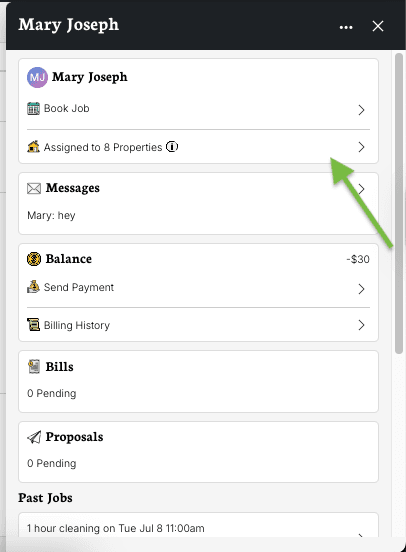
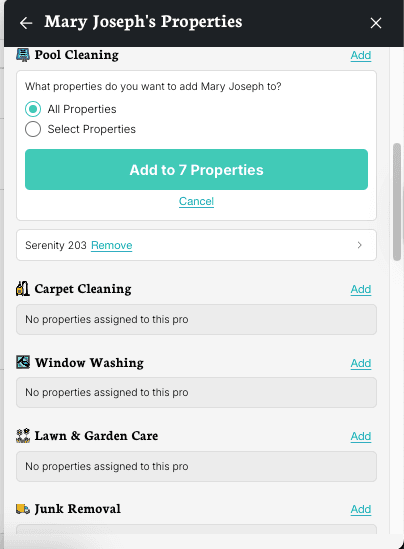
Each address has its own list of pros, but you can add the same pro to many addresses. To do that, select the pro from your list and hit "Assigned to x Properties".
Here, you’ll be able to add existing pros to different properties, as well as decide which services they’ll offer at those specific addresses.

Pros you Add
When you add a pro, you can book and manage them just like any other pro in the system. When you send a job request out, they get an alert with the information about the job, and the pro can accept your job digitally. It’s similar to you picking up the phone and calling them and getting them on your schedule, only way easier for everyone.
To add a pro, follow these steps:
- Go to the "My Pros" section.
- Tap "Add Pro".
- Enter the contact information for your pro, so they can get your job request.
- They can accept the job request OR you can just assign them to the job.
- We make it really easy for your pros, they don’t need to install anything they don’t want to.
- After the job, its easy for pros to invoice you.
- You can pay the invoice in any way you like.
- If you like, you can set up autopay.
- Want to make things even easier? Send a "Checklist Link" to your pro, and they can use this for all jobs instead of you doing it manually. See Checklist Links.
Help Adding Pros
If you want to add any pro to your list, but are having issues, just send us a message with their information to our Concierge Team and we will help add them to your list.
Pro Detail Page
Click any pro’s name to open their detail page. Here you can see everything about that pro and take quick actions:
- Contact Info — Name, email, and phone number
- Properties — All properties this pro is assigned to
- Past Jobs — A history of jobs this pro has completed for you
- Recent Messages — The latest messages from your shared inbox with this pro
- Billing (private pros only) — Credit balance, pending invoices, and pending proposals
From the pro detail page, you can:
- Book a Job — Start a new booking specifically with this pro
- Send Payment — Send money directly to a private pro
- Message Pro — Open a conversation in the shared inbox
- Call Pro — Call them directly from the app
- Edit Contact Info — Update their name, email, or phone
- Favorite Pro — Move this pro to the top of your priority list
- Block Pro — Prevent this pro from seeing any of your job requests
- Settings — Set a daily job limit for this pro
Pro Settings (Batch Edit)
The Pro Settings page lets you view and edit rates and autopay limits for all your pros at once. This is available on desktop and is useful if you manage many pros across many properties.
The page shows a table of every pro-service-property combination. You can filter by service type, property, or pro name. Select multiple rows and use batch edit to update the service name, default rate, or autopay limit for all selected rows at once.
Browse & Find New Pros
Need a new pro? TIDY offers two ways to find one:
- Browse Pros — Search for pros through integrated networks. You can see ratings, reviews, and years in business before choosing a pro. ID verification and background-check status appear only if you enabled those requirements under More → Agents, then the gear next to Find New Pro, then Compliance Requirements.
- Smart Pro Search — Turn on automated pro matching and TIDY will find available pros from external networks (Google, Yelp, Thumbtack, and TIDY’s own network) when your existing pros aren’t available. You can set preferences for requirements like insurance, background checks, and certifications.
Raising Quality Standard Thresholds
Minimum star rating, minimum number of reviews, and years in business — the Quality Standard preferences used for Browse Pros and Smart Pro Search — have a default cap. If you try to raise one past that cap (for example, requiring a 4.7+ rating or 5+ reviews), the app will ask you to contact a manager instead of saving the change directly. That’s expected: message your Concierge or Account Manager with the exact threshold you want and they can raise it for you. Keep in mind stricter thresholds shrink the pool of matching pros, so there’s a tradeoff between selectivity and how fast a job gets staffed.
Prioritizing Pros
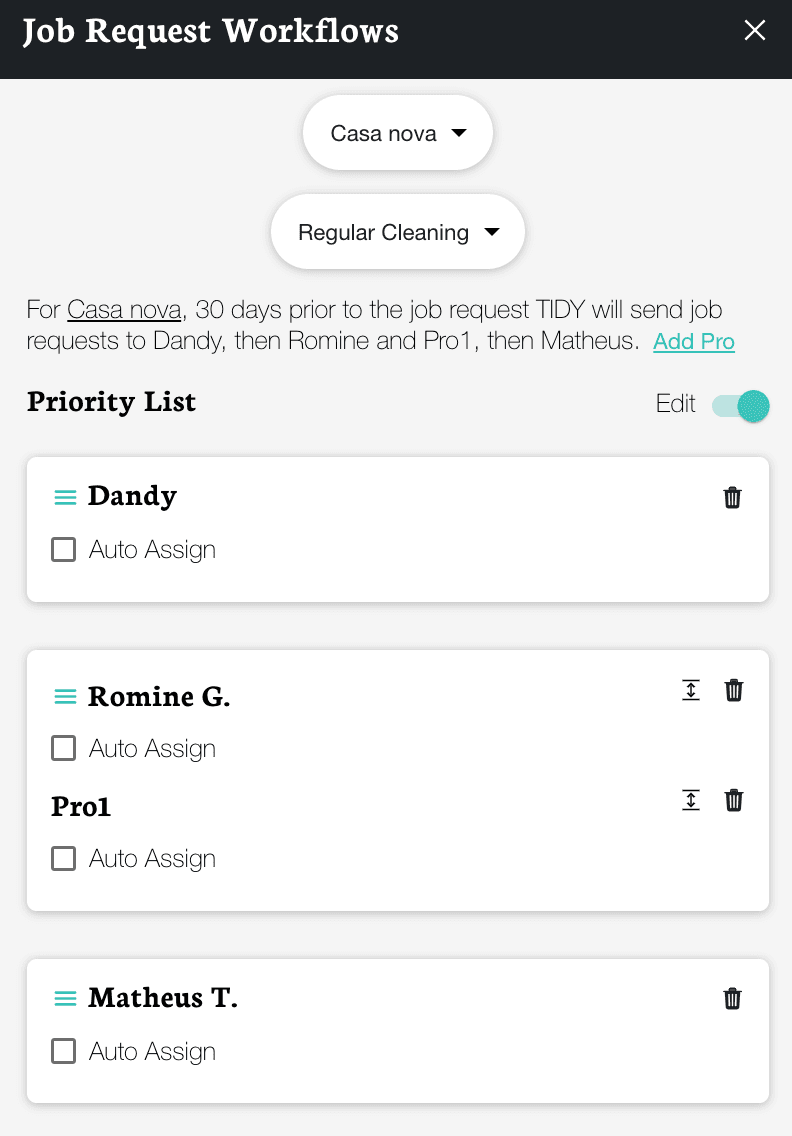
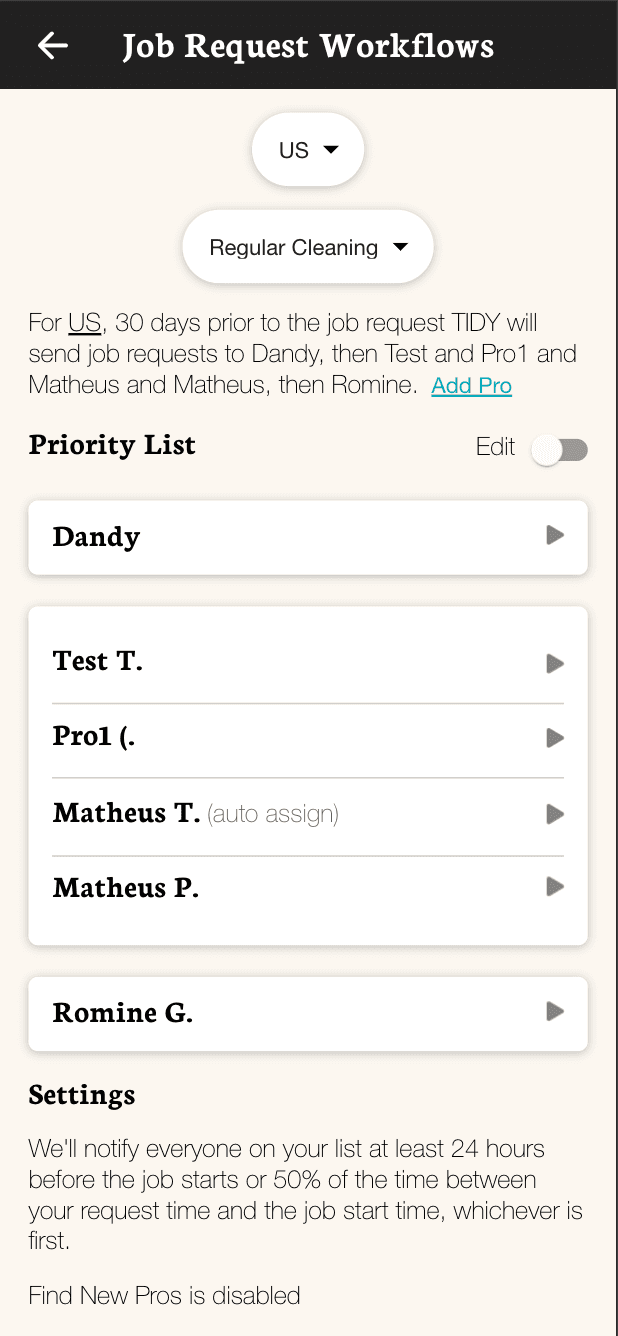
Once a Pro is added to your account, you will find them under "Job Request Workflows" in the "Automations" section of the app.
- To edit your priority list, drag the pros you want to be contacted first to the top. If you’d like two or more pros to be contacted at the same time, put them in the same cluster together.
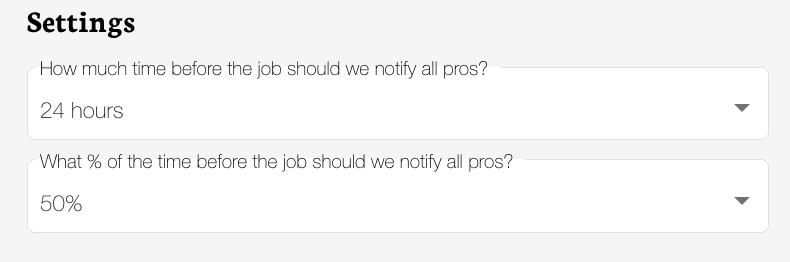
- Extra settings: If you scroll down on the same page, you can also choose how long before the job starts all pros should be notified, regardless of your priority list.
Same Pro Each Time
By default, your request is to get the same pro each time unless they or you make a change. You can of course always change this if you like.
There are 2 types of "cards" that show up in your priority list:
- Pro Name - This is your pros that you add or have had previously in some way. It will just show their name, like "Sandra".
- Pro Search Agent- This "card" shows when you want the Pro Search Agent to find the best pro available in accordance with your preferences. It will trigger in the same order as any individual pro on the list. So if you block this setting, it won’t trigger and new pros won’t be found. See the Pro Search Agent documentation for details.
Blocking and removing pros
You have the option of blocking or removing pros from your account. You can do so by following these steps:
- Go to the "My Pros" section of your app/browser and tap on the Pro you would like to remove;
- Tap on "Block Pro" and then confirm the block.
- This will remove them from all addresses on your account
If instead, you wish to remove them from specific addresses, do this:
- Go to Automations and click on Job Request Workflows
- There you’ll need to select the address and service you wish to remove the Pro
- Toggle the Edit option
- Tap on the trash can icon right next to the Pro you wish to remove
Please note that if you block the pro that means you will not be paired with them again and if you choose to remove the pro you are only removing them from that one property/service.
When Notifications are Sent
Currently, the notification will be sent to pros on your list in the order you specify. It follows the following order:
- First person on your favorite list is notified immediately.
- The remaining time between now and the requested start time is divided in 1/2. The first half is dedicated to working through your favorite list, with equal time per person.
- After 1/2 the time has elapsed, the request goes to everyone on your list.
Example 1:
If you have 5 people on your favorite list, and you requested 10 days in advance, you would see the following notifications:
- Immediate: Person 1
- After 1 day: Person 2
- After 2 days: Person 3
- After 3 days: Person 4
- After 4 days: Person 5
- After 5 days: all pros notified
Example 2: If you specify everyone is approved, and don’t mark anyone as a favorite, everyone will be notified immediately.
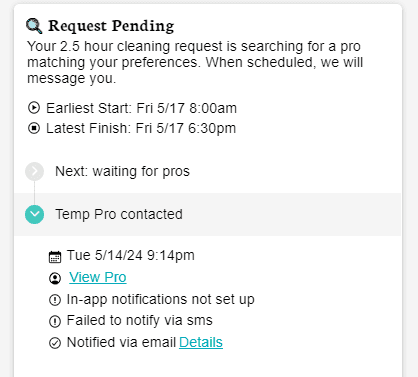
You can view this information by clicking on the job request and tapping the Pro’s name on the notification timeline:
Here, you will be able to see when the Pro was notified and if the notifications arrived successfully via app, SMS, or email.
Contacting Your Pros (Phone/Text)
See Messages for more details.
In general, there are many things to communicate, and most can be handled directly in the app or online. For example:
- To tell them how to get in, we recommend using the Home access instructions.
- To provide some help with parking, use the parking instructions.
- To reschedule, use the scheduling part of the app.
- To tell them what to do, use To-Dos.
This improves clarity and automatically handles things in odd cases (for example, if a substitute is needed then they have the information needed to be efficient).
However, you can also contact them by text or call by tapping the Call and Text buttons in your app. They will also text message you when they are on the way, arrived, and other updates. You can call or text them back on that number.
Please note that all calls and texts made via the TIDY Platform, such as those between yourself and Pros, may be recorded so both parties have access to them in order to resolve any future disputes.