
TIDY Concierge
The Concierge combines our AI agent with 24/7 humans to help.
AI can make mistakes. Please verify important information.
Integrations
TIDY lets you integrate with a wide variety of services in order to automate what you might do manually. We offer several types of integrations:
- iCal-based integrations
- Zapier integrations
- Direct integrations
- Concierge integrations
Integration Categories
TIDY supports integrations across multiple categories:
- Search — Find and discover services and professionals
- Booking Channels — Sync guest reservations from Airbnb, VRBO, Booking.com, and other vacation rental platforms
- Notifications — Send event-based alerts to Slack, webhooks, or other external systems
- Property Management — Connect with Hostaway, Guesty, Lodgify, and 15+ other PMS platforms for deeper data sync including properties and reservations
- Upsells — Sources to send us upsell requests
- Smart Devices — Control smart locks (RemoteLock, Schlage, Yale, August) and thermostats (Ecobee, Nest, Honeywell) to manage access and save energy
- Restocking — Places to buy or ship supplies to a property
- Quotes — Sources of vendors to get quotes for you
Here are examples of popular integrations available:
In addition, you can always create your own integration using our API.
Airbnb: Add TIDY as a Co-Host
For Airbnb, the primary way to connect TIDY is to add TIDY as a co-host on your listing. That gives TIDY the access needed to sync reservations and help manage the listing. TIDY polls Airbnb inquiry status and keeps it current. When you reply to an inquiry in Airbnb, TIDY records it as Responded so your team can see that the follow-up is handled. Your account manager or Concierge can walk you through the invite if you need help.
You can also sync calendars with an iCal link (below) when co-host access isn’t available or you only need reservation dates.
iCal based integrations (like Airbnb)
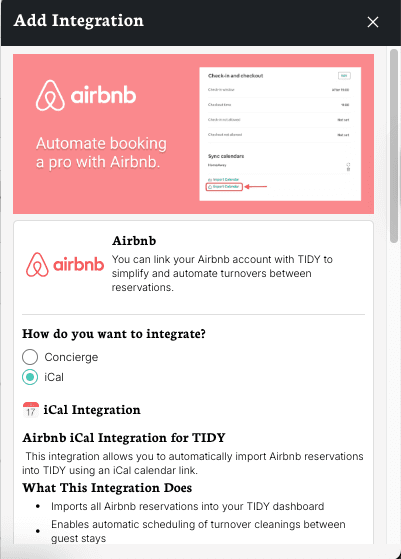
Many integrations work via an iCal link, including calendar sync with Airbnb, VRBO, and Booking.com. An iCal link looks similar to a website link, but it’s used to watch for events in a calendar.
Integrating via iCal allows you to sync data then if you like, enable automatic booking and TIDY will attempt to book a pro following your priorities.
How to Sync Data
When you sync data, reservations will appear in your account. Here is how to sync:
The steps are basically:
1\. Go to the "Integrations" section:
2\. Select the integration you want:
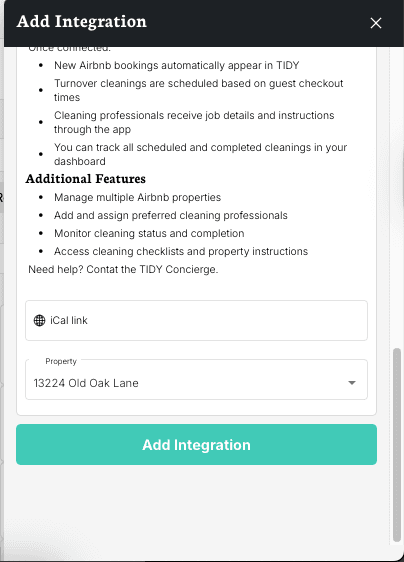
3\. Export your iCal link from the other service (for example: Airbnb lets you export a iCal link, and provides instructions here).
4\. Insert the iCal link into the field here, select the address that this iCal link refers to.


5\. Set up Automatic Booking. See Automatic Booking for more details. Automatic Booking works after events, so for rental guests it is the "check out" day. The "Book No Earlier Than" time is the earliest someone could arrive to do the job on the check out day. Most clients pick a time about 30 minutes after their regularly scheduled check out time. The "Book No Later Than" time is the latest time someone could complete the job on the check-in day. Most clients pick a time 30 minutes before the regularly scheduled check in time.
Reservations now appear in your account.
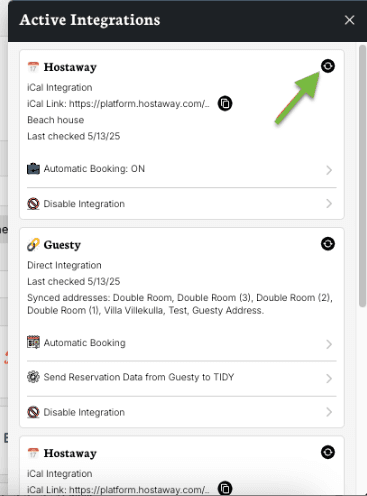
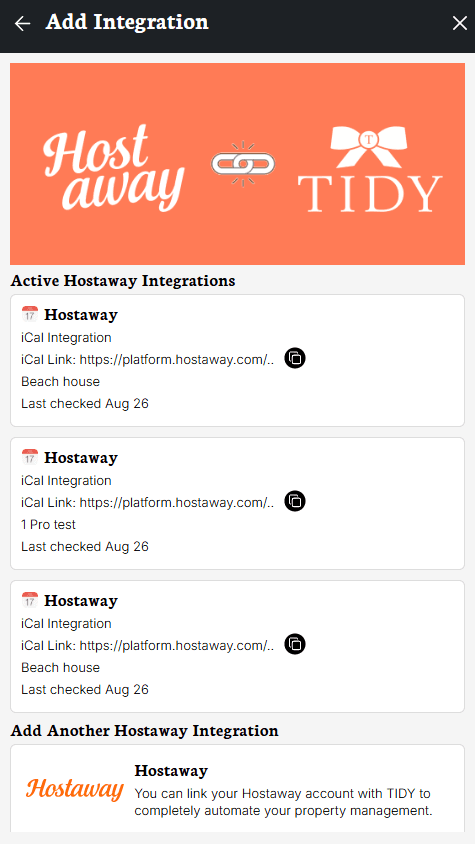
Active Integrations
If you have an active integration with any of the options in TIDY, whenever you try to add a new one, you will be able to see all of the active integrations for that specific website.

Zapier Integration
We also offer integrations through Zapier. This can be an easy "no code" way to do anything our API can do. For more information, check out our Zapier.
Direct Integration
We have direct integrations with many Property Management Systems (PMSs). Direct integrations let you do more, such as pull in all addresses into TIDY and keep those addresses up to date with all reservations.
- Beds24
- DoorLoop
- Guesty
- Hostaway
- Hostbuddy
- Hostify
- Hospitable
- Host Tools
- Lodgify
- OwnerRez
- Rentvine
- Resman
- Slack
- Smoobu
- Uplisting
Concierge Integrations
Concierge integrations are the most flexible integration TIDY offers, allowing you to integrate almost anything in almost any way. It’s powered by AI-Augmented humans. This has advantages of flexibility allowing you to do the integration you want, but not quite as fast as other integration types. Here is how these work:
- You give us access to the integration partner you need. Only the team members who need access will be able to use the access. If you do not need us to make edits, make it read-only if possible.
- You define the type of data you are looking to sync with your success rep or the concierge.
- We will sync data 1x per day, with our team logging in and getting the data from your account via Concierge Actions.
- With Concierge Integrations, if you are looking to sync only Guest Reservation data and properties, then this 1 check does not count against your concierge actions for a given period.
- You can see actions and workflows in your account, including failures, success, and other info.
Viewing Reservations
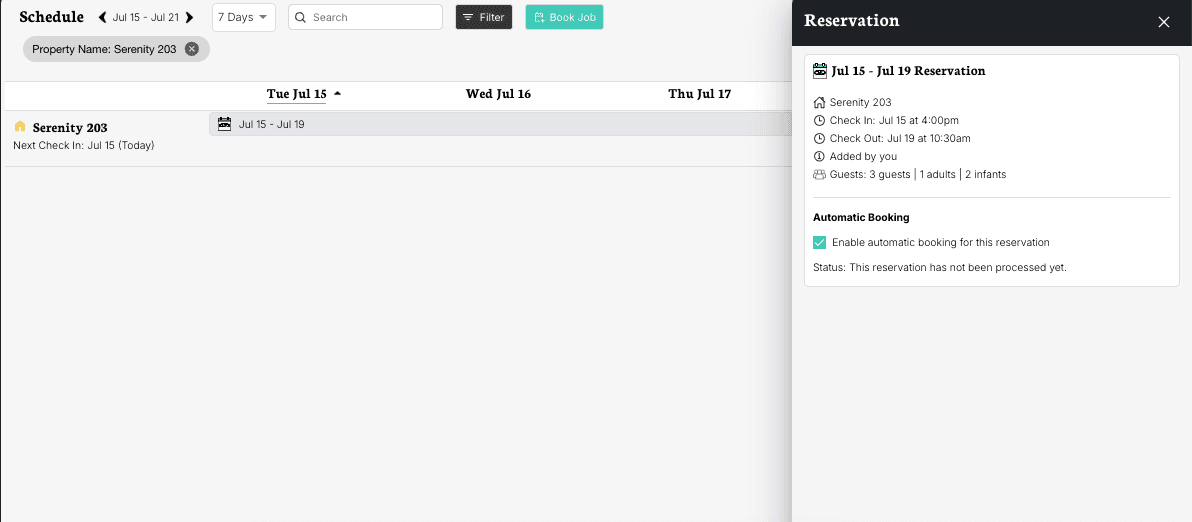
Once you have synced data, you can view the upcoming scheduled appointments in your account in the "Schedule" section. You can tap on a reservation to view what is going on with it currently. When you tap a reservation to see more details, you can see:
- Check-in date
- Check-out date
- The address booked
- The synced integration
- Number and description of guests
- The current automatic booking status. Whether it is off, on, successful, or why it hasn’t started yet.
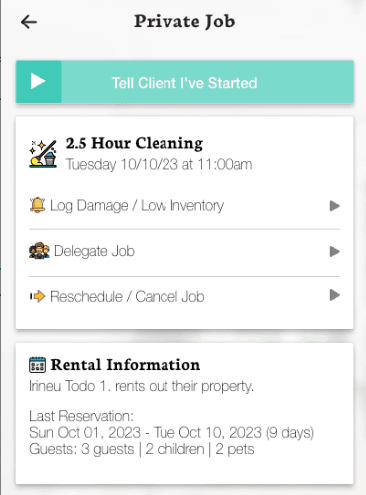
The reservation details will also be available for your Pro under the "Rental Information" section, on the job page of their app.

Adding Custom Fields
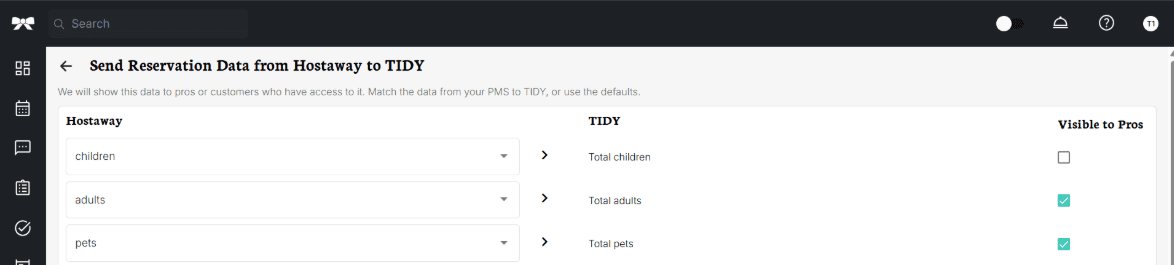
While we have some default information that will be present on each reservation synced, you can also customize this and add more information if you wish. You can enter the guest name, email, the number of pets, children ,and more information that you want to have displayed in the reservation.
You have the option to make that information visible or not to your Pros. Simply mark the checkbox under Visible to Pros, to set this. To access this page go to More and then click on Integrations, select your Direct integration and then click on Send Reservation Data from PMS to Tidy.
Manually Adding Reservations
We understand that while most reservations are automatically synced from platforms like Airbnb, there are times when you may need to manually add a reservation. Whether it’s a special booking, a direct reservation, or any other reason, we’ve made it easy for you to add reservations directly within the app.
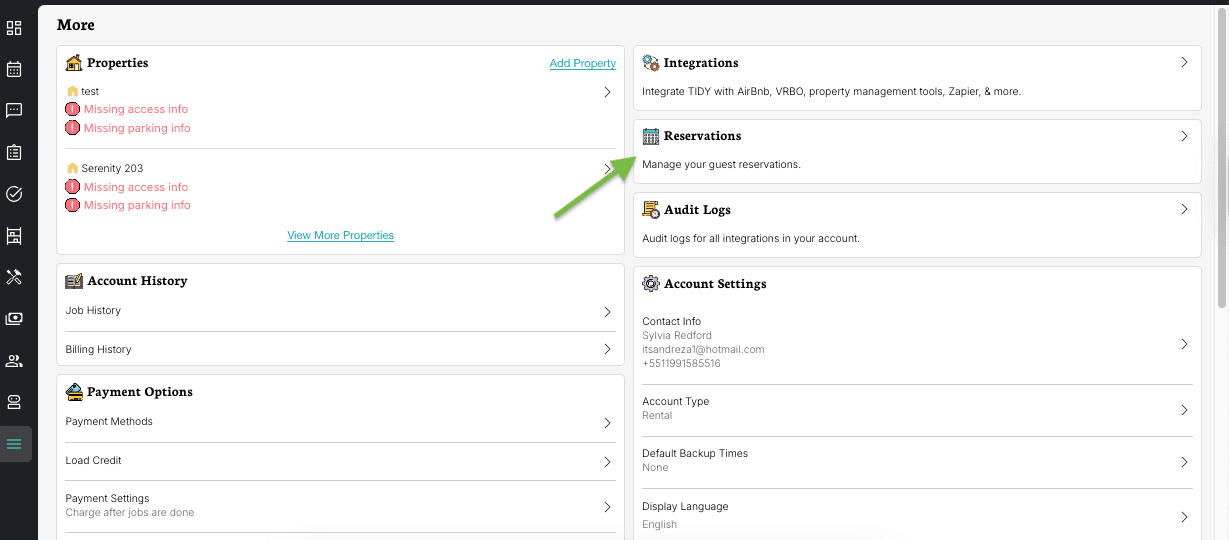
- Tap on the "More" option of the app.
- Hit "Reservations" to view all current bookings.
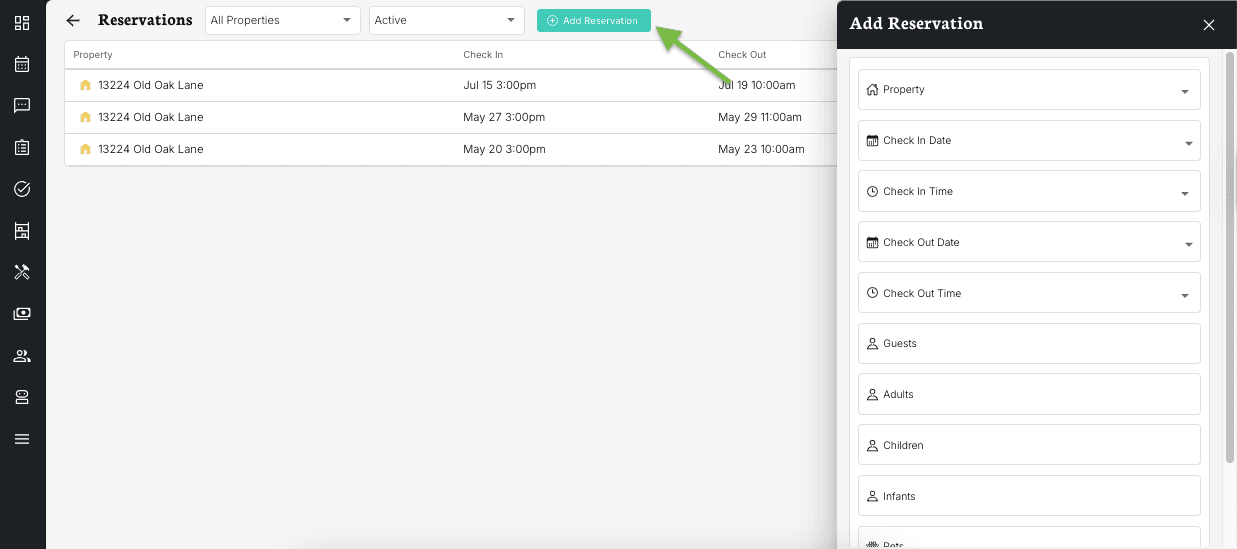
- At the top of the Reservations page, you’ll see an option to "Add Reservation." Tap on it to begin creating a new booking.
- Select the property and enter all required information for the reservation, such as check-in and check-out dates, guest details, and any other relevant information.
Integration Status
Each active integration shows a status indicator so you always know if things are working properly:
- Last synced [time] — Everything is working. Shows when the last successful sync happened.
- Sync Pending — The integration was just connected and is waiting for its first sync.
- Syncing guest reservations — A sync is currently in progress.
- Issue syncing — Something went wrong. You may need to update your integration details (like an expired API key).
Field Mapping (Integration Settings)
For direct integrations, you can control how data from your external platform maps to fields in TIDY. This lets you decide what information appears on reservations and whether it’s visible to your pros.
To access field mapping, go to your active integration and click "Settings". From there you can map variables from your PMS (like guest name, check-in time, special requests) to TIDY fields. You can also create custom fields if the standard ones don’t cover everything you need.
Manual Sync
Besides syncing automatically, typically every 3 hours (this can also vary according to your PMS), TIDY also allows you to sync your reservations at any time you’d like. This way, you can always have the most up-to-date information about new reservations.
To sync manually, go to the "more" section, tap "Integrations", select the integration you’d like to sync, and then hit "Sync Reservation".

Sync History (Audit Logs)
Want to see a history of all your integration syncs? The Audit Logs page shows every sync run with its status, timing, and how many records were processed. You can filter by:
- Status — Success, Failure, or Running
- Property — See syncs for specific properties
- Integration name — Search for a specific integration
This is useful for troubleshooting when reservations aren’t showing up, or to confirm that a manual sync completed successfully. Click any sync run to see detailed information including error messages if something went wrong.